


Come recuperare Stream Key e Stream URL di YouTube per andare live sul tuo canale aziendale
Per trasmettere su YouTube Live con software come OBS Studio, Streamlabs, vMix ecc. ti servono lo Stream URL (RTMPS/RTMP) e la tua Stream Key dalla Live Control Room di YouTube Studio. Questa guida è pensata per un canale business/brand (spesso collegato a un Brand Account).
La Stream Key è come una password: chi la possiede può trasmettere sul tuo canale. Non condividerla e non mostrarla in schermate pubbliche.
- Requisiti
- Verifica di essere sul canale aziendale corretto
- Aprire YouTube Studio ? Go live (Live Control Room)
- Scegliere “Streaming software” (Right now / Later date)
- Copiare Stream Key e Stream URL (Copy / Reset)
- Inserire i dati in OBS (o encoder RTMPS/RTMP)
- Avviare la live e verificare lo stato
- Impostazioni consigliate (compatibilità)
- Troubleshooting
- FAQ
1) Requisiti
- Un canale YouTube abilitato alla live (in alcuni casi l’abilitazione richiede tempo).
- Accesso con l’account che gestisce il canale aziendale (o Brand Account).
- PC/Mac con browser (Chrome/Edge consigliati).
- Un software di streaming (es. OBS Studio).
- Connessione stabile in upload.
- Stream URL: indirizzo di ingest (spesso
rtmps://a.rtmp.youtube.com/live2o simile). - Stream Key: chiave univoca da incollare nel tuo encoder.
Stream URL:   rtmp(s)://HOST[:PORT]/PATH
Stream Key:   xxxx-xxxx-xxxx-xxxx (chiave lunga)
2) Verifica di essere sul canale aziendale corretto
Se gestisci più canali (personale + aziendale), controlla l’icona profilo in alto a destra su YouTube/YouTube Studio e seleziona “Cambia account” per entrare nel canale business prima di creare la live.
Se copi una Stream Key dal canale sbagliato, OBS trasmetterà sul canale sbagliato. Controlla sempre il nome canale in alto a sinistra in YouTube Studio.
3) Aprire YouTube Studio ? Go live (Live Control Room)
- Apri studio.youtube.com.
- In alto a destra, clicca Create (icona “+ / videocamera”).
- Seleziona Go live per aprire la Live Control Room.
La UI di YouTube cambia nel tempo, ma la logica resta: YouTube Studio ? Create ? Go live ? Stream.
4) Scegliere “Streaming software” (Right now / Later date)
4.1 Scegli quando andare live
In Live Control Room, YouTube può chiederti quando vuoi andare live: Right now (subito) o Later date (programmata).
- Scegli Right now per andare live subito, oppure Later date per programmare.
- Clicca Start.
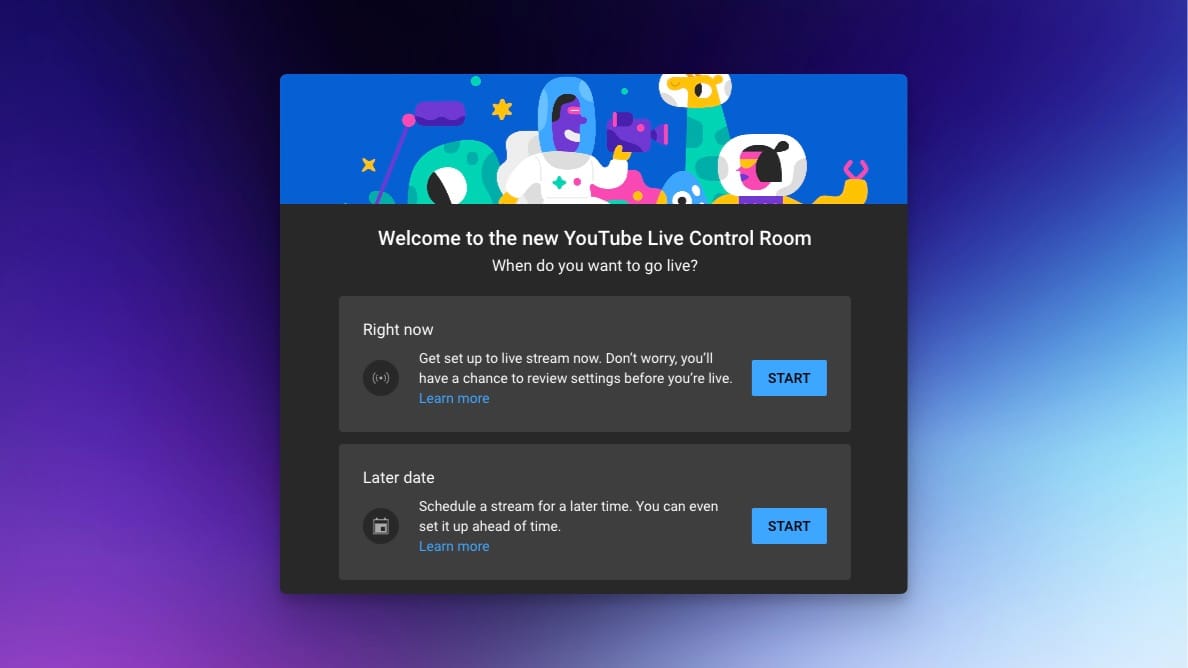
4.2 Scegli il tipo di live: “Streaming software”
- Alla domanda “Pick the type of stream to begin”, seleziona Streaming software.
- Clicca Go.
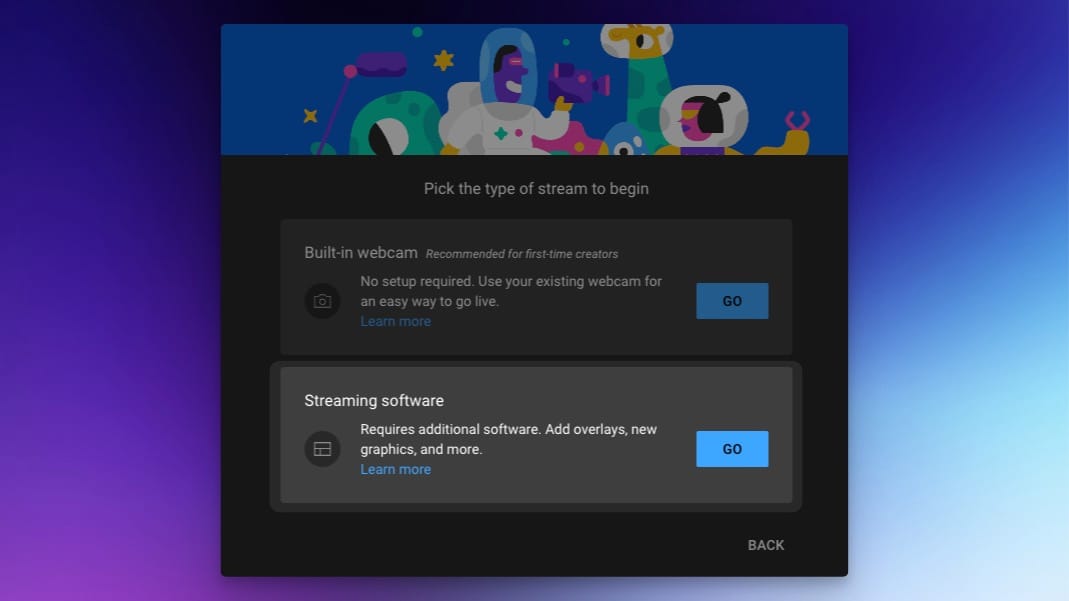
5) Copiare Stream Key e Stream URL (Copy / Reset)
Una volta dentro la pagina dello stream, apri la tab Stream settings (o Stream) e trova: Stream key + Stream URL (RTMPS/RTMP).
- Clicca COPY accanto a Stream key per copiarla.
- Clicca COPY accanto a Stream URL per copiare l’URL.
- Se sospetti che la key sia stata esposta, clicca RESET per rigenerarla.
- (Opzionale) In “Select stream key” puoi creare e scegliere una custom stream key per riutilizzarla.
Dopo un RESET, la vecchia Stream Key non funziona più: aggiorna subito OBS/encoder con la nuova chiave.
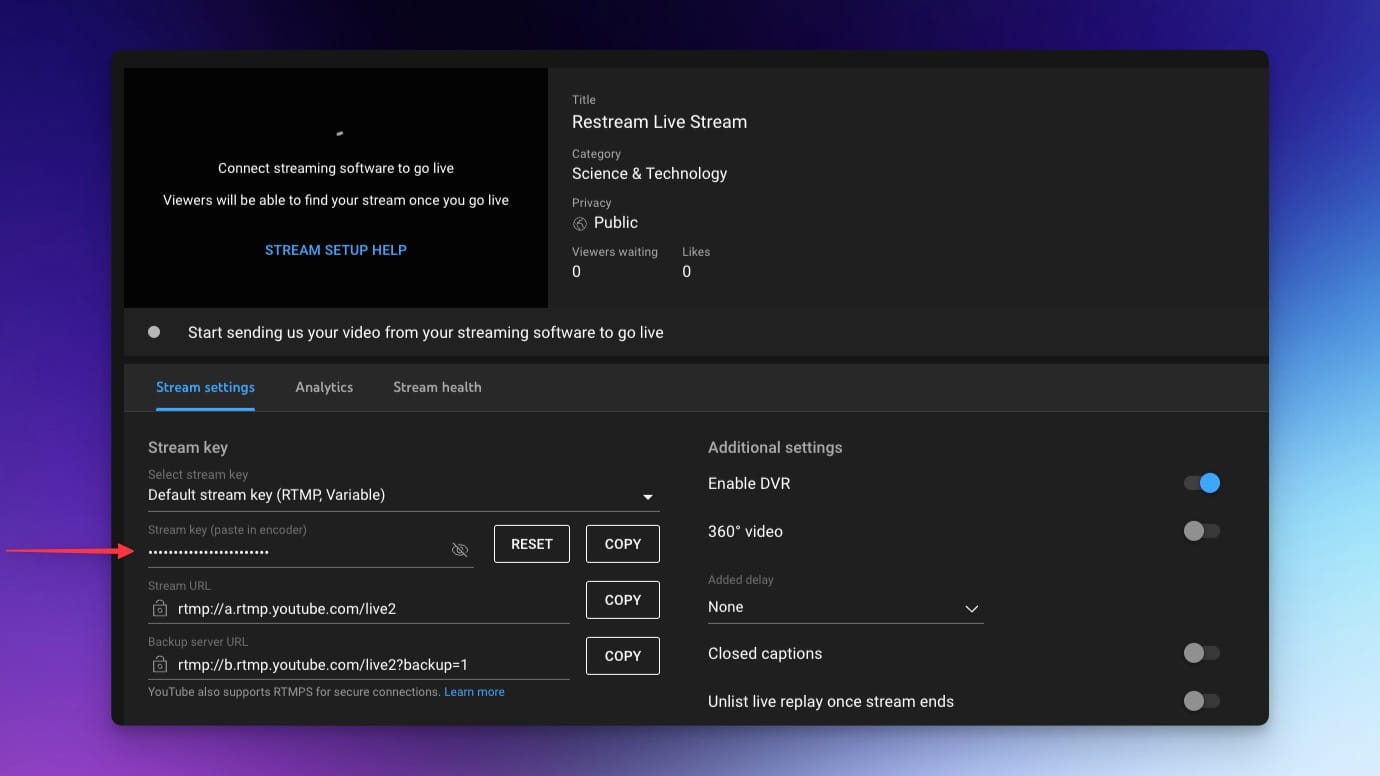
Puoi anche aprire la sezione Manage nella Live Control Room e cliccare l’evento: lì troverai Stream Key e URL.
6) Inserire i dati in OBS (o encoder RTMPS/RTMP)
6.1 Metodo rapido: collega l’account (se disponibile)
- In OBS: Settings ? Stream ? Service: YouTube.
- Usa Connect Account (se presente) per collegare YouTube senza incollare manualmente la key.
6.2 Metodo manuale: Stream Key
- In OBS: Settings ? Stream ? Service: YouTube.
- Incolla la Stream Key nel campo dedicato.
- Se il tuo encoder richiede anche l’URL, incolla lo Stream URL nel campo Server/URL.
Incolla Stream Key e URL senza spazi iniziali/finali. Uno spazio invisibile è una causa frequente di errore.
7) Avviare la live e verificare lo stato
- In OBS, clicca Start Streaming.
- Torna su YouTube Studio e controlla l’anteprima e la sezione Stream health.
- Se Auto-start è attivo, YouTube può andare live automaticamente quando parte l’encoder; altrimenti clicca Go live in YouTube.
- Quando finisci, ferma lo streaming in OBS e poi chiudi la live in YouTube (o usa Auto-stop).
8) Impostazioni consigliate (compatibilità)
Le impostazioni dipendono dalla tua connessione e dal contenuto. Come baseline “sicura” e molto compatibile:
| Parametro | Consiglio | Note |
|---|---|---|
| Video codec | H.264 | Standard più compatibile per ingest. |
| FPS | 30 fps (o 25 fps) | Stabile per la maggior parte dei casi. |
| Risoluzione | 1080p (o 720p se upload limitato) | Se la linea è instabile, 720p aiuta molto. |
| Bitrate video | ~4–6 Mbps per 1080p30 (meno per 720p) | Adatta al tuo upload reale misurato. |
| Keyframe / GOP | 2 secondi | Impostazione comunemente consigliata. |
| Audio | AAC 128–192 kbps @ 48 kHz | 160 kbps è un buon equilibrio. |
| Rate control | CBR quando possibile | Aiuta la stabilità. |
Tieni il bitrate totale (video + audio) entro ~60–70% dell’upload reale misurato (speed test).
9) Troubleshooting
Non si collega / “failed to connect”
- Ricopia Stream Key e Stream URL (senza spazi).
- Se hai cliccato RESET, aggiorna l’encoder con la nuova key.
- Verifica di essere nel canale giusto (account business).
- Prova a riavviare OBS e ricaricare la Live Control Room.
Non vedo l’anteprima
- Aspetta 10–30 secondi: può esserci ritardo di ingest.
- Controlla che OBS sia davvero in streaming (timer e bitrate in basso).
- Controlla “Stream health” per errori di rete/bitrate.
Stream scattoso / buffering
- Riduci bitrate o passa a 720p.
- Evita altri upload contemporanei (backup cloud, chiamate, ecc.).
- Usa CBR e keyframe 2s.
10) FAQ
La Stream Key cambia ogni volta?
Di solito no: puoi riutilizzare una key oppure creare una custom stream key. Cambia quando la rigeneri (Reset) o se usi flussi diversi.
Posso usare RTMPS?
Sì: YouTube supporta ingest sicuro via RTMPS. Se il tuo encoder lo supporta, è preferibile.
Dove trovo Stream Key e Stream URL per una live programmata?
Apri la Live Control Room e vai su Manage, seleziona l’evento, poi apri Stream settings.
Riferimenti utili: YouTube Help — Create a live stream with an encoder • YouTube Help — Manage live stream settings • YouTube Help — Encrypt your stream using RTMPS • Restream Learn — How to find your YouTube stream key • StreamYard Help — Connect an existing YouTube Live Stream