


Come recuperare la Stream Key di Twitch per andare live con il tuo canale aziendale
Per trasmettere su Twitch con software come OBS Studio, Streamlabs, vMix ecc., ti serve la tua Primary Stream Key (chiave stream). In questa guida trovi i passaggi per recuperarla dal Creator Dashboard del tuo canale Twitch (brand/azienda).
Sicurezza
La Stream Key è come una password: chi la possiede può avviare una live sul tuo canale. Non condividerla e non mostrarla in schermate pubbliche.
La Stream Key è come una password: chi la possiede può avviare una live sul tuo canale. Non condividerla e non mostrarla in schermate pubbliche.
Indice
1) Requisiti
- Un account Twitch (il canale del tuo brand/azienda).
- Browser desktop (Chrome/Edge consigliati).
- Software di streaming (es. OBS Studio).
- Upload stabile (meglio Ethernet).
Cosa ti serve davvero
- Stream Key: una chiave lunga che autorizza l’encoder a trasmettere sul tuo canale.
- In OBS (Servizio Twitch) di solito basta la Stream Key: il server ingest può rimanere su Auto.
2) Aprire il Creator Dashboard
- Vai su twitch.tv e accedi.
- Clicca sulla tua icona profilo in alto a destra.
- Seleziona Creator Dashboard.

Figura 1 — Apri il menu cliccando sull’icona profilo (in alto a destra). Fonte: Streamlabs (screenshot interfaccia Twitch).
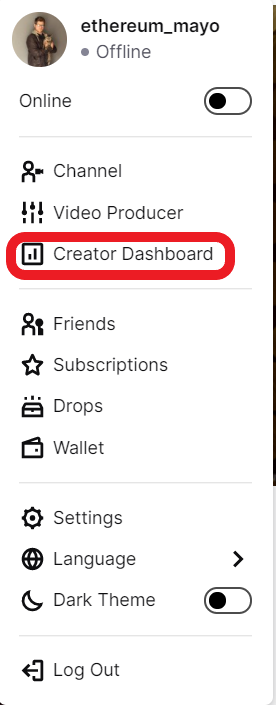
Figura 2 — Seleziona Creator Dashboard dal menu. Fonte: Streamlabs.
3) Aprire Settings ? Stream
- Nel menu laterale del Creator Dashboard, apri Settings.
- Clicca Stream.
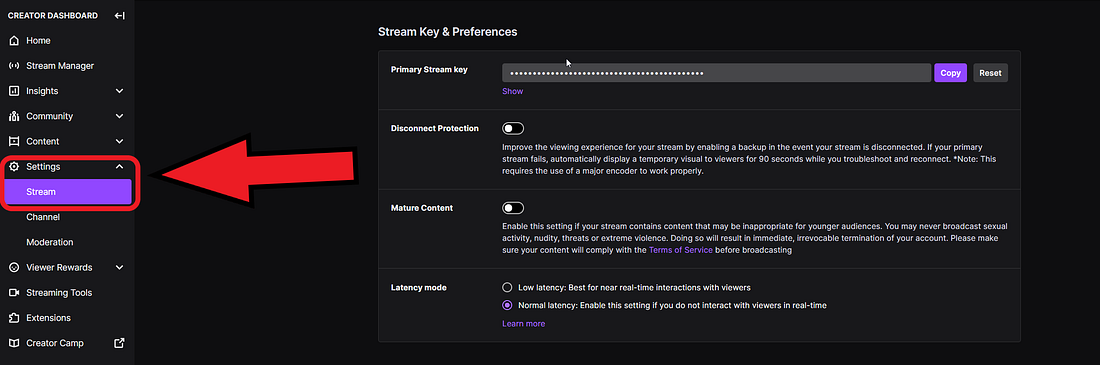
Figura 3 — Creator Dashboard ? Settings ? Stream. Fonte: Streamlabs.
4) Mostrare e copiare la Stream Key (Copy / Reset)
Nella pagina Stream trovi la sezione Stream Key & Preferences con la tua Primary Stream Key.
- Clicca Show (se presente) per visualizzare la chiave.
- Clicca Copy per copiarla negli appunti.
- Se sospetti che la chiave sia stata vista/compromessa, clicca Reset per generarne una nuova.
Importante
Dopo un Reset, la vecchia Stream Key non funziona più: aggiorna subito OBS/encoder con la nuova chiave.
Dopo un Reset, la vecchia Stream Key non funziona più: aggiorna subito OBS/encoder con la nuova chiave.

Figura 4 — Sezione Stream Key & Preferences: Copy e Reset. Fonte: Streamlabs.

Figura 5 — Dettaglio della Primary Stream Key con pulsanti Copy/Reset. Fonte: Streamlabs.
5) Inserire la Stream Key in OBS (o encoder RTMPS/RTMP)
5.1 Metodo consigliato: collega l’account Twitch (se disponibile)
- In OBS: Settings ? Stream ? Service: Twitch.
- Clicca Connect Account (recommended) per collegare Twitch: OBS gestisce la key in automatico.
5.2 Metodo manuale: incolla la Stream Key
- In OBS: Settings ? Stream ? Service: Twitch.
- Server: lascia Auto (di norma va bene).
- Campo Stream Key: incolla la chiave copiata da Twitch.
Consiglio pratico
Incolla la Stream Key senza spazi iniziali/finali. Anche uno spazio “invisibile” può causare errore di connessione.
Incolla la Stream Key senza spazi iniziali/finali. Anche uno spazio “invisibile” può causare errore di connessione.
6) Avviare la live e verificare che sia online
- In OBS, clicca Start Streaming.
- Controlla su Twitch (Stream Manager / pagina canale) che lo stato passi a Live.
- Se non va online entro 10–30 secondi, vedi la sezione troubleshooting.
7) Troubleshooting
Errore di connessione / “Failed to connect”
- Ricopia la Stream Key (niente spazi) e riprova.
- Se hai fatto Reset, assicurati di aver aggiornato OBS con la nuova key.
- Prova a cambiare server ingest (da Auto a una regione vicina) se la connessione è instabile.
Vado live ma qualità bassa / buffering
- Riduci bitrate e/o risoluzione (es. 720p).
- Evita altri upload contemporanei (backup cloud, call, ecc.).
- Usa CBR e keyframe (GOP) a 2 secondi se il tuo encoder lo permette.
Non riesco ad avviare la live (verifiche account)
- Se Twitch richiede verifiche di sicurezza (telefono/2FA), completa i passaggi nelle impostazioni account.
8) FAQ
La Stream Key cambia ogni volta?
Di norma resta la stessa finché non clicchi Reset (o finché non la rigeneri per sicurezza).
Posso trasmettere da due PC con la stessa Stream Key?
In genere Twitch accetta una connessione ingest alla volta: se avvii due encoder contemporaneamente, uno può disconnettere l’altro.
Dove trovo esattamente la Stream Key?
Creator Dashboard ? Settings ? Stream ? sezione Stream Key & Preferences.
Riferimenti utili: Twitch Creator Dashboard • Twitch Help — Stream Key FAQ