


Configurare un RTMP personalizzato in OBS (Custom RTMP)
Questa guida ti mostra come impostare OBS Studio per trasmettere verso un server RTMP/RTMPS utilizzando Server URL e Chiave Stream (stream key).

Figura 1 — Esempio di flusso ingest RTMP: encoder (OBS) ? server ? spettatori. Fonte: documentazione Amazon IVS.
Indice
1) Requisiti e dati necessari
Prima di iniziare, assicurati di avere:
- URL Server RTMP/RTMPS (es.
rtmp://stream.tuodominio.it/live) - Chiave Stream (stream key), spesso un nome canale o un token
- Connessione con upload stabile (banda in uscita)
Nota sicurezza
La chiave stream è come una password: chi la possiede può trasmettere sul tuo canale. Non condividerla.
La chiave stream è come una password: chi la possiede può trasmettere sul tuo canale. Non condividerla.
Formato tipico (quasi sempre)
Server: rtmp(s)://HOST/APP
Chiave: NOME_STREAM (oppure token / query)Esempio 1
Server: rtmp://stream.tuodominio.it/live
Chiave: canale1
Esempio 2 (RTMPS + token)
Server: rtmps://stream.tuodominio.it/live
Chiave: canale1?token=ABC1232) Impostazioni Stream in OBS (Servizio personalizzato)
- Apri OBS e vai su Impostazioni (Settings).
- Apri la sezione Stream.
- Nel campo Servizio, seleziona Personalizzato… (Custom).
- Compila:
- Server: incolla l’URL RTMP/RTMPS
- Chiave stream: inserisci la stream key
- Clicca Applica ? OK.
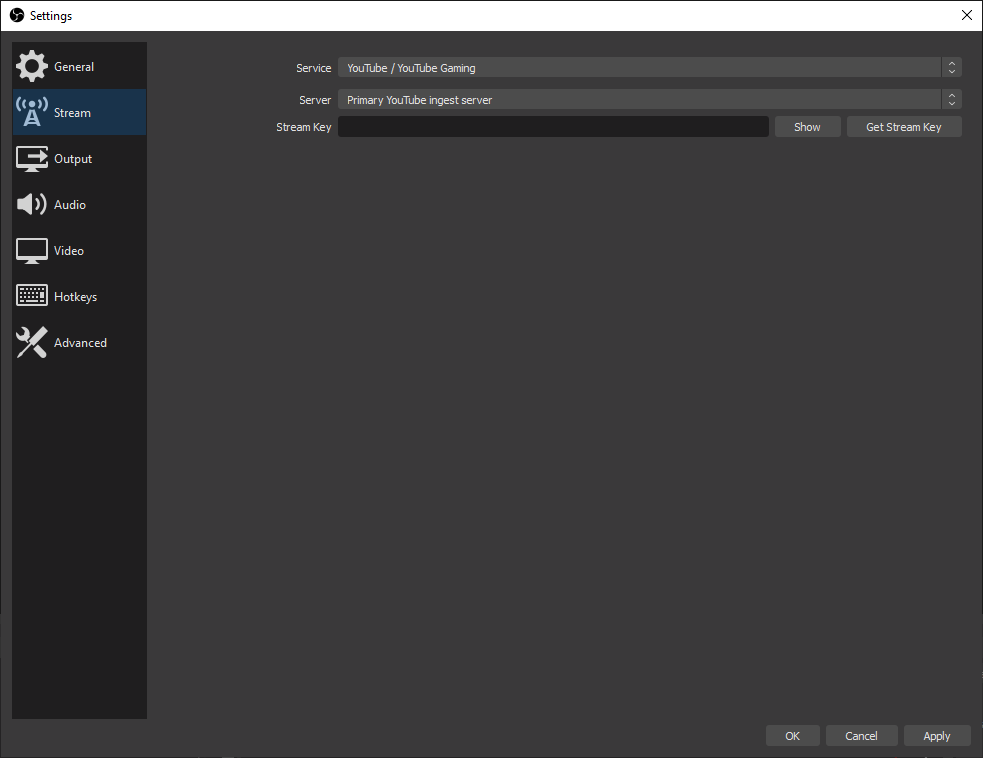
Figura 2 — Sezione Stream in OBS (esempio). Seleziona “Custom/Personalizzato” e inserisci Server e Stream Key. Fonte: OBS Project Knowledge Base.
RTMPS (consigliato)
Se il tuo server supporta RTMPS, usa
Se il tuo server supporta RTMPS, usa
rtmps:// al posto di rtmp:// per cifrare la connessione.3) Impostazioni consigliate (video/audio)
Per ridurre blocchi e disconnessioni, imposta valori coerenti con la tua banda in upload. Qui sotto trovi una base “safe” per la maggior parte dei server RTMP.
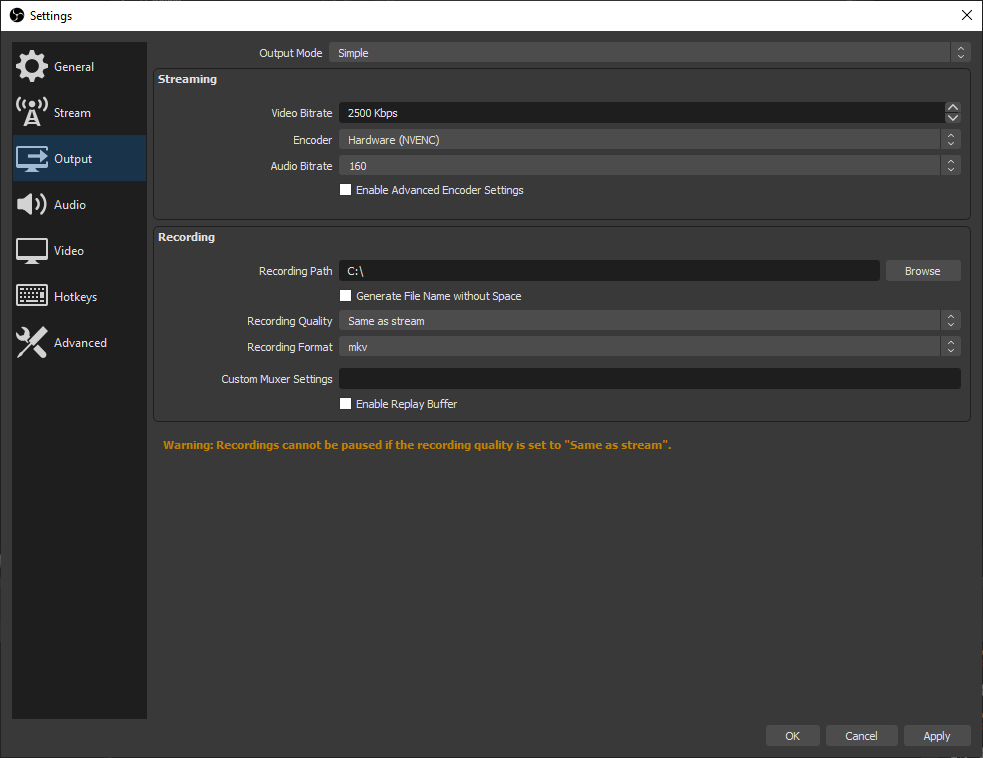
Figura 3 — Sezione Output in OBS (esempio). Video bitrate e audio bitrate influenzano stabilità e qualità. Fonte: OBS Project Knowledge Base.
| Parametro | Consiglio | Note |
|---|---|---|
| Encoder video | x264 oppure hardware (NVENC/AMF/QSV) | Hardware riduce il carico CPU, utile su PC meno potenti. |
| Bitrate video | In base all’upload (es. 3500–6000 kbps per 1080p30) | Se hai drop frame, abbassa bitrate o passa a 720p. |
| Keyframe interval | 2 secondi | Valore richiesto/consigliato da molti servizi/CDN per compatibilità. |
| Audio | AAC, 128–192 kbps | 160 kbps è un buon compromesso. |
| Risoluzione / FPS | 720p30 o 1080p30 (a seconda della banda) | Se la rete è critica, 720p30 è più robusto. |
Regola pratica sull’upload
Tieni il bitrate totale (video+audio) al massimo al 60–70% del tuo upload reale (misurato), per evitare saturazione e instabilità.
Tieni il bitrate totale (video+audio) al massimo al 60–70% del tuo upload reale (misurato), per evitare saturazione e instabilità.
4) Test di funzionamento
- Verifica che scene e sorgenti siano ok (audio che “muove” i livelli, preview visibile).
- Clicca Avvia streaming.
- Controlla la barra di stato: dropped frames bassi e bitrate stabile.
- Apri il tuo player/pannello del servizio e verifica che il flusso arrivi correttamente.
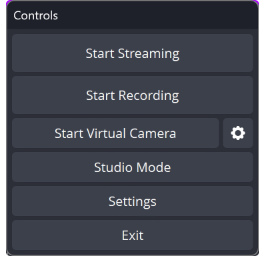
Figura 4 — Controlli principali di OBS (Start Streaming / Start Recording). Fonte: OBS Project Knowledge Base.
5) Risoluzione problemi
Errore: “Could not connect” / non si collega
- Controlla che Server e Chiave siano corretti (nessun carattere in più).
- Verifica DNS/host (il dominio punta al server giusto).
- Controlla firewall/NAT: la porta RTMP classica è TCP 1935 (o quella indicata dal provider).
- Se usi RTMPS, assicurati che il certificato TLS sia valido e la porta corretta sia aperta.
Dropped frames alti / stream a scatti
- Abbassa il bitrate e/o usa 720p invece di 1080p.
- Passa a encoder hardware (NVENC/AMF/QSV) se la CPU è al limite.
- Evita Wi?Fi: preferisci cavo Ethernet.
- Se il server è lontano, prova un endpoint più vicino (se disponibile).
Audio fuori sync
- Imposta 48 kHz in Impostazioni ? Audio (coerente tra dispositivi).
- Riduci filtri/processing pesanti e verifica eventuali ritardi su sorgenti (Delay).
6) FAQ
Posso usare user/password?
Alcuni server RTMP supportano credenziali nell’URL (es. rtmp://user:pass@host/app), ma non tutti. Spesso i provider usano token nella Chiave o come query (es. ?token=...).
Qual è la differenza tra RTMP e RTMPS?
RTMPS è RTMP su TLS: cifratura della connessione. Se disponibile, è preferibile.
Posso registrare e trasmettere insieme?
Sì: OBS consente Avvia registrazione e Avvia streaming in parallelo (valuta però CPU/disk e bitrate).