


Set up a Custom RTMP in Wirecast (Telestream)
This guide explains how to configure Wirecast to stream to a RTMP/RTMPS server (CDN or private server) using the Address (URL) and Stream (Key/Name) fields.

1) Requirements & needed details
Before configuring Wirecast, gather these details from your provider (or your own server):
- RTMP URL (also called “Ingest URL” / “Server URL”): e.g.
rtmp://stream.yourdomain.tld/live - Stream Key / Stream Name: e.g.
channel1or a token - A stable upload connection (Ethernet recommended)
Your Stream Key is like a password: anyone who has it can stream to your channel. Don’t share it.
Address (URL): rtmp(s)://HOST[:PORT]/APP
Stream (Key): STREAM_NAME (or STREAM_NAME?token=...)Example 1
Address: rtmp://stream.yourdomain.tld/live
Stream: channel1
Example 2 (token)
Address: rtmp://stream.yourdomain.tld/live
Stream: channel1?token=ABC1232) Open Output Settings and add “RTMP Server”
- In Wirecast, go to Output ? Output Settings…
- Click Add… to add a destination.
- Under Destination, select RTMP Server and click OK.
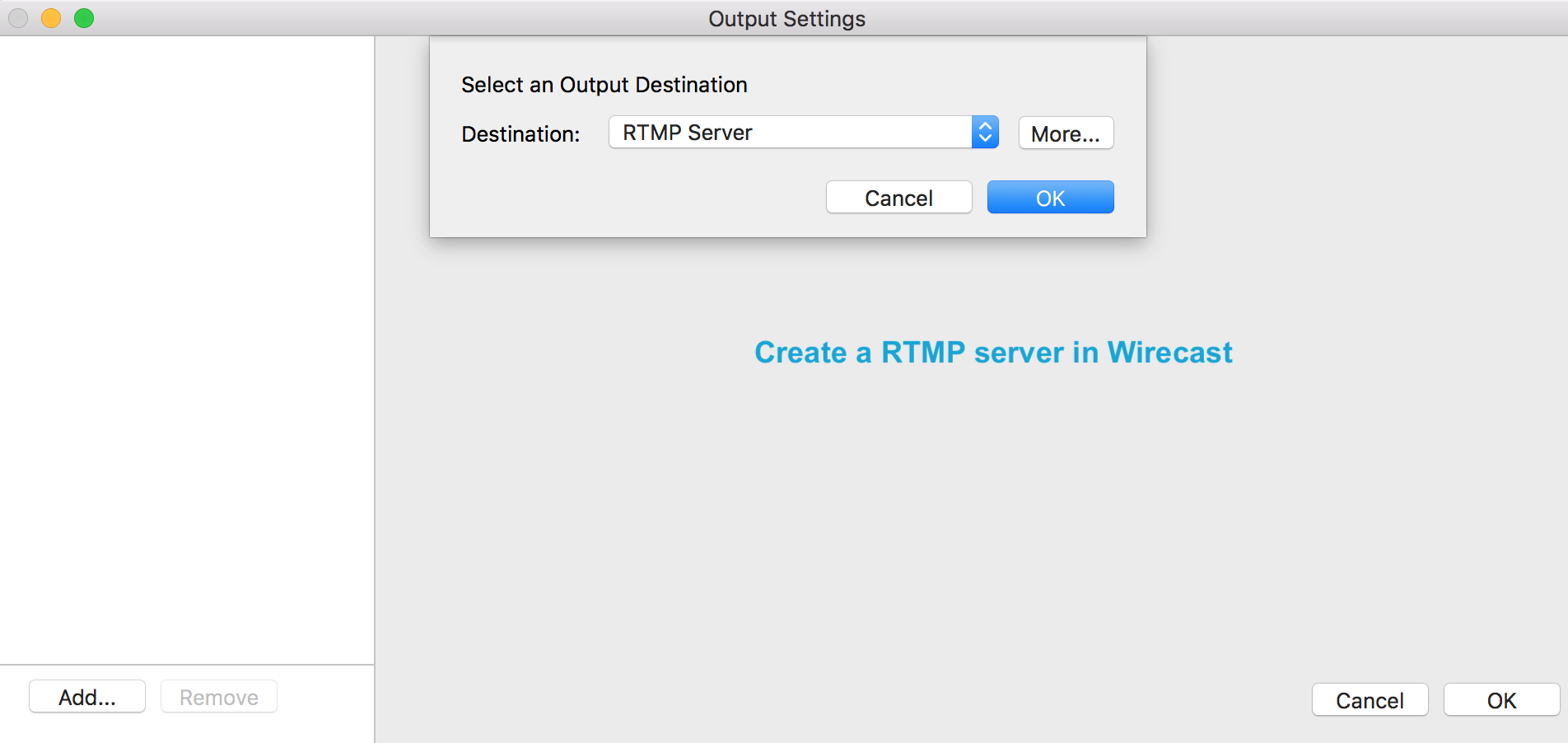
The most common RTMP port is TCP 1935. If your provider uses a different port (e.g. 443/80), it will be included in the URL.
3) Enter Address (URL) and Stream (Key)
- In Output Settings, set a name (e.g. “Event CDN” or “RTMP Server”).
- Paste the RTMP URL into Address.
- Enter the stream key/name in Stream.
- If required by your provider, use Set Credentials… (only if they gave you username/password).
- Click OK to confirm.
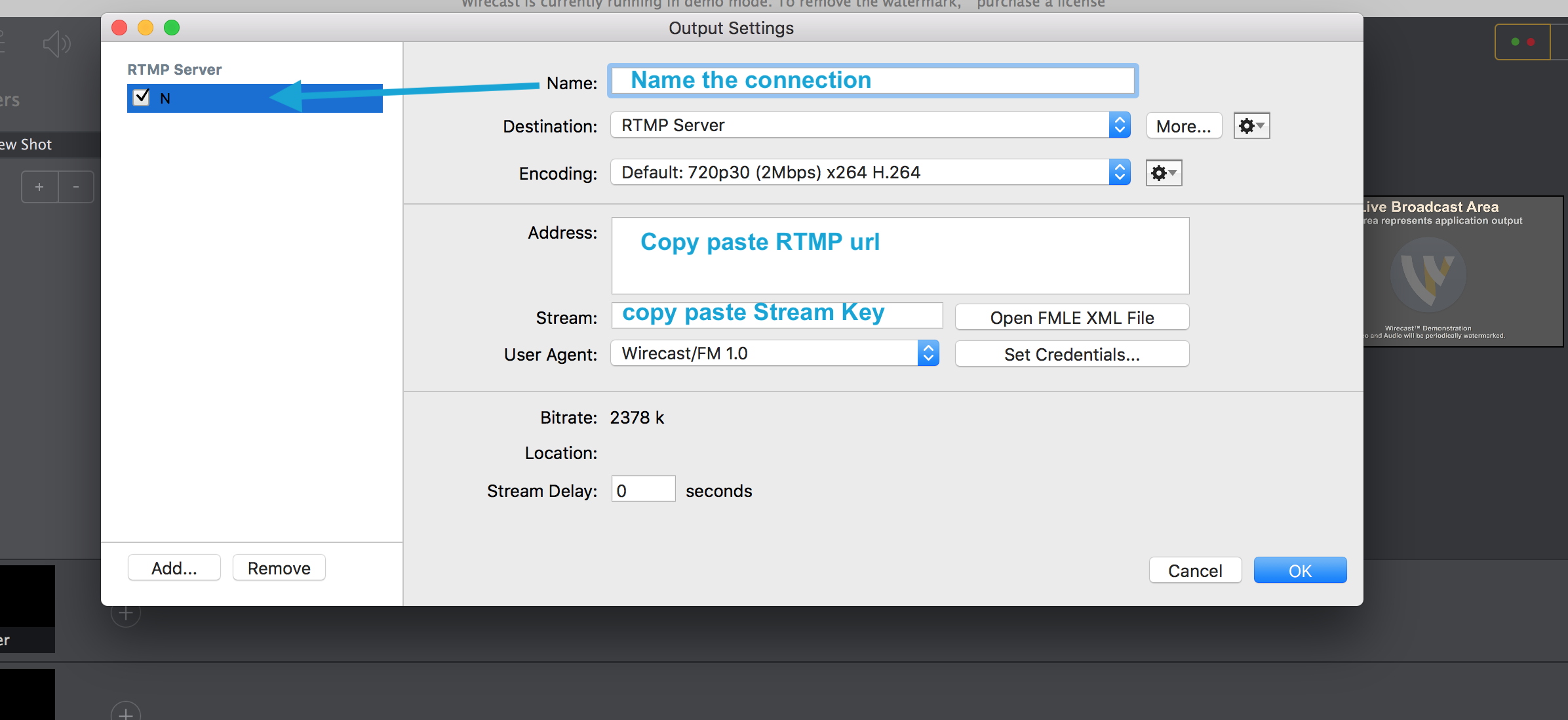
If your provider gives you a very long URL, part of it may be a token/key. In that case:
- put the base endpoint in Address
- put the “key/token” part in Stream
4) Encoder and recommended settings
Wirecast provides encoding presets (e.g. 720p/1080p) and allows you to tweak parameters if needed. As a safe baseline for most RTMP servers:
| Setting | Recommendation | Notes |
|---|---|---|
| Video codec | H.264 | Most compatible for RTMP. |
| Rate control | CBR (Constant Bitrate) | Often preferred by CDNs for stability. |
| Keyframe interval | 2 seconds (? 60 frames at 30 fps) | Commonly required/recommended. |
| Audio codec | AAC (128–192 kbps) | 160 kbps is a good balance. |
| Resolution / FPS | 720p30 or 1080p30 (based on upload) | If your network is tight, 720p30 is more resilient. |

Keep total bitrate (video+audio) at most 60–70% of your real measured upload to avoid saturation and instability.
5) Start streaming and verify
- Make sure your project is ready (sources/shots, audio, etc.).
- Start broadcasting via:
- Output ? Start/Stop Broadcasting (or a Stream button in the UI, depending on your version)
- Check your provider dashboard/player to confirm the stream is received.

6) Troubleshooting
Error: “Could not connect” / can’t connect
- Re-check Address and Stream (no extra spaces/characters).
- Make sure the URL points to the correct app path (e.g.
/live,/app) as provided. - Check network/firewall: RTMP often uses TCP 1935; some corporate networks block it.
- If your provider uses RTMPS or alternate ports (80/443), ensure you use the correct endpoint.
Choppy stream / dropped frames
- Lower bitrate and/or switch to 720p.
- Lower FPS (30) and stop competing uploads (backups/cloud sync).
- Prefer Ethernet and ensure upload is not saturated.
Audio out of sync
- Use a consistent sample rate (typically 48 kHz) and check delays on audio sources.
- Avoid heavy filters if CPU is close to its limits.
7) FAQ
Can I add multiple destinations?
Yes: in Output Settings you can add multiple destinations, but each additional destination requires more resources and more upload bandwidth.
Where can I see stream status/statistics?
Depending on your Wirecast version, you can see streaming indicators/statistics in the Output area or dedicated panels.
RTMP vs RTMPS
RTMPS is RTMP over TLS (encrypted). If your provider gives you an rtmps:// URL, try using it in Address. If it fails, ask for an alternative endpoint (e.g. RTMP over 443) or check your version’s compatibility.