


Set up a Custom RTMP on Haivision (Makito X)
This guide explains how to configure an RTMP output on a Haivision encoder (e.g. Makito X / Makito X Series) to send a stream to an RTMP server (CDN or private server) using an Address/URL and a Publish Name (the equivalent of a “Stream Key”).

1) Requirements & needed details
From your provider (or your RTMP server) you need:
- RTMP URL for the application endpoint (e.g.
rtmp://stream.yourdomain.tld/live) - Stream Key / Publish Name (e.g.
channel1orchannel1?token=ABC123) - Optional username/password (only if the RTMP server requires authentication)
Your Stream Key (Publish Name) is like a password: anyone who has it can stream to your channel.
Address / Destination URL: rtmp://HOST[:PORT]/APP
Publish Name (RTMP): STREAM_KEY (or STREAM_KEY?token=...)Example 1
Address: rtmp://stream.yourdomain.tld/live
Publish Name: channel1
Example 2 (non-standard port + token)
Address: rtmp://stream.yourdomain.tld:1936/live
Publish Name: channel1?token=ABC1232) Open the Outputs page (List View)
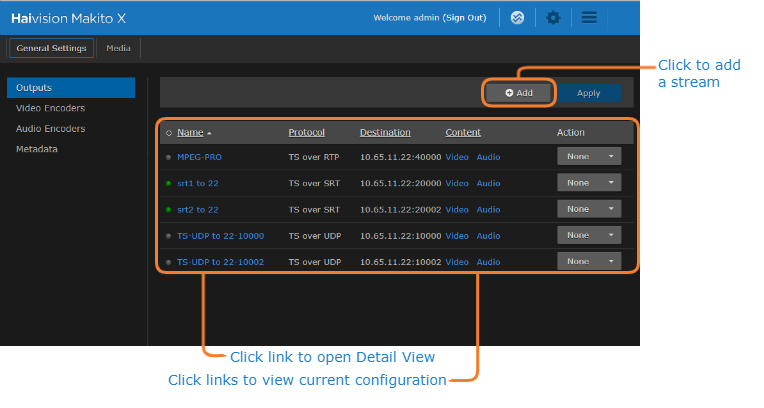
- Log in to your Haivision encoder Web UI (e.g. Makito X).
- Go to Streaming ? General Settings ? Outputs.
- You will see the Outputs List View with configured streams.
3) Create a new stream
- In Outputs List View, click Add (the “+” icon).
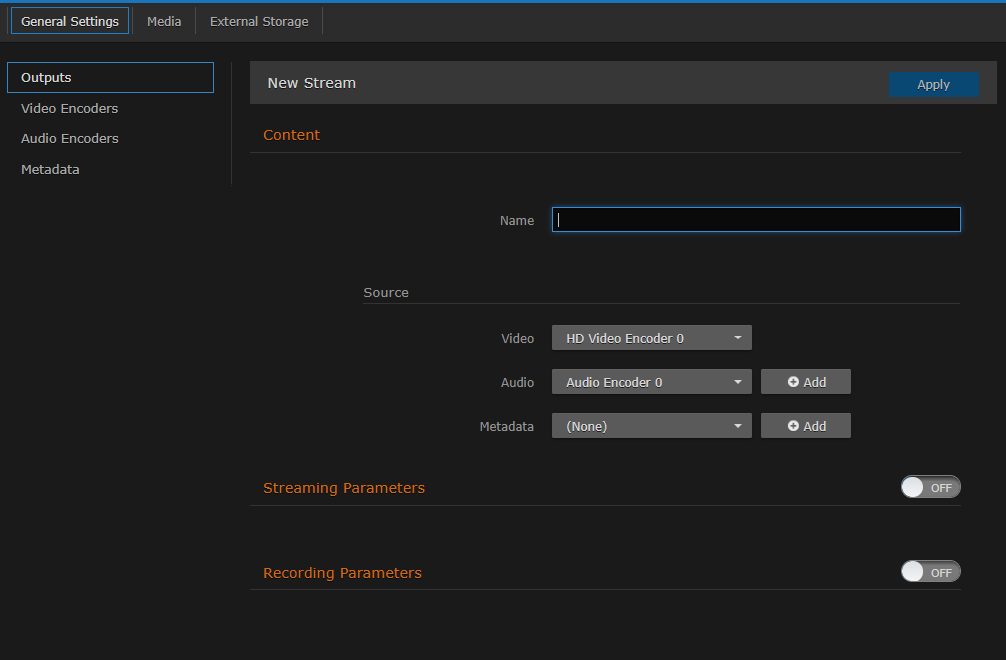
- In Outputs Detail View, enter a Name for the stream.
- Select sources:
- Video (Video Encoder)
- Audio (Audio Encoder)
- Metadata (optional)
- If your model is a “Storage” unit, enable Streaming Parameters to ON (when available).
4) Set RTMP: Protocol, Address and Publish Name
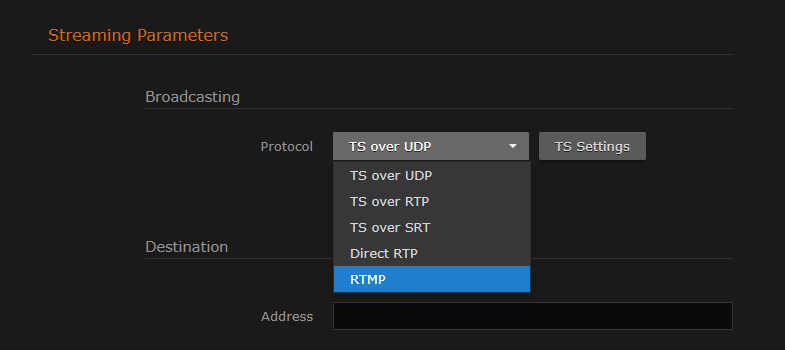
4.1 Select RTMP as Protocol
- In the Broadcasting section, set Protocol to RTMP.
4.2 Fill in Destination Address (URL) and Publish Name (Stream Key)
In the Destination section (or equivalent fields), enter:
- Address / Destination Address: the RTMP URL for the application endpoint
- Publish Name: your Stream Key (required for RTMP). If omitted, some setups may use the stream name.
- Username/Password: only if required by the RTMP server
By default, RTMP uses port 1935. If your server uses a different port, include it in the URL (e.g.
rtmp://host:1936/live).5) Start the stream and verify
- Click Apply to save and (depending on configuration) start the stream.
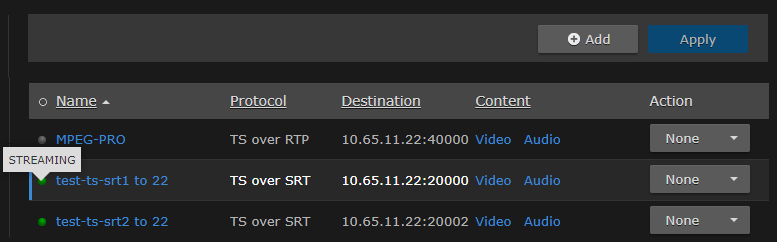
- Return to Outputs List View and verify status using the LED indicator and the Action column.
- Check your provider dashboard/player to confirm the stream is received.
6) Stability tips
| Area | Recommendation | Why |
|---|---|---|
| Bitrate | Set bitrate to match available upload bandwidth | If you saturate upload, drops/delay and disconnects increase. |
| Keyframe / GOP | 2 seconds | Commonly required/recommended by CDNs for compatibility. |
| Network | Prefer Ethernet and reduce competing traffic | RTMP is sensitive to jitter/loss on unstable uplinks. |
Keep total bitrate (video+audio) within 60–70% of real measured upload.
7) Troubleshooting
Can’t connect
- Check Address and Publish Name (no extra spaces/characters).
- Ensure the URL includes the correct path/app (e.g.
/live) as provided. - Network/firewall: RTMP often uses TCP 1935. Corporate networks may block it.
- If using a different port (e.g. 443/80), make sure it’s included in the URL.
Choppy video / frame drops
- Lower bitrate and/or resolution (720p is more resilient than 1080p).
- Verify uplink stability and reduce competing uploads.
- If available, try a closer CDN endpoint.
Audio OK, video black
- Verify H.264 profile (Baseline/Main/High) according to server/player requirements.
- Check GOP and keyframe interval; try 2s and CBR where applicable.
8) FAQ
Can I send RTMP to two endpoints (primary/backup)?
In many workflows you can create multiple RTMP streams to send to different endpoints (primary and backup), if your encoder/platform supports it and you have enough bandwidth.
Where do I find “Publish Name”?
It’s the RTMP field that corresponds to the “Stream Key” or “Stream Name” provided by your service. In some cases the key is a token or a string with parameters (e.g. ?token=...).
References: Haivision Makito X – Setting Up Streaming • Haivision Makito X – CDN Interoperability (RTMP)