


Set up a Custom RTMP on Blackmagic Design
This guide provides two procedures (with images) to stream to a custom RTMP server using Blackmagic Design devices:
- ATEM Mini Pro / Extreme / ISO (direct Ethernet streaming) ? add a custom service via Streaming.xml.
- Blackmagic Streaming Encoder / Web Presenter ? configure a custom RTMP from Blackmagic Streaming Utility / Web Presenter Setup.
The “base” ATEM Mini (non Pro/Extreme) does not include the hardware streaming engine over Ethernet: in that case you use the USB “webcam” output with software (OBS/vMix/XSplit) to push RTMP.
1) Required details (URL + Stream Key)
From your provider (or your RTMP server) get:
- RTMP URL (also called “Ingest URL” / “Server URL”): e.g.
rtmp://stream.yourdomain.tld/live - Stream Key (or “Stream Name”): e.g.
channel1orchannel1?token=ABC123
RTMP URL  : rtmp(s)://HOST[:PORT]/APP
Stream Key: STREAM_KEY (or STREAM_KEY?token=...)Your Stream Key is like a password: do not share or publish it.
2) ATEM Mini Pro/Extreme: add a custom RTMP service (Streaming.xml)
With ATEM Mini Pro/Extreme/ISO models you can stream over Ethernet. To add a service that is not listed, you edit Streaming.xml, which defines the streaming platforms in ATEM Software Control.

2.1 Locate Streaming.xml
Typical locations:
- macOS:
/Library/Application Support/Blackmagic Design/Switchers/Streaming.xml - Windows:
C:\Program Files (x86)\Blackmagic Design\Blackmagic ATEM Switchers\ATEM Software Control\Streaming.xml
Create a backup before editing (e.g.
Streaming.xml.bak).2.2 Edit Streaming.xml and add your RTMP server
- Open
Streaming.xmlwith a text editor (Visual Studio Code recommended). - Copy an existing
<service>...</service>block and paste it below the last one. - Edit at least:
<name>: the label you’ll see in ATEM Software Control (e.g. “Custom RTMP”)<url>: your RTMP URL (application endpoint)
- Save the file (on Windows you may need admin privileges).
- Close and re-open ATEM Software Control to reload the services.
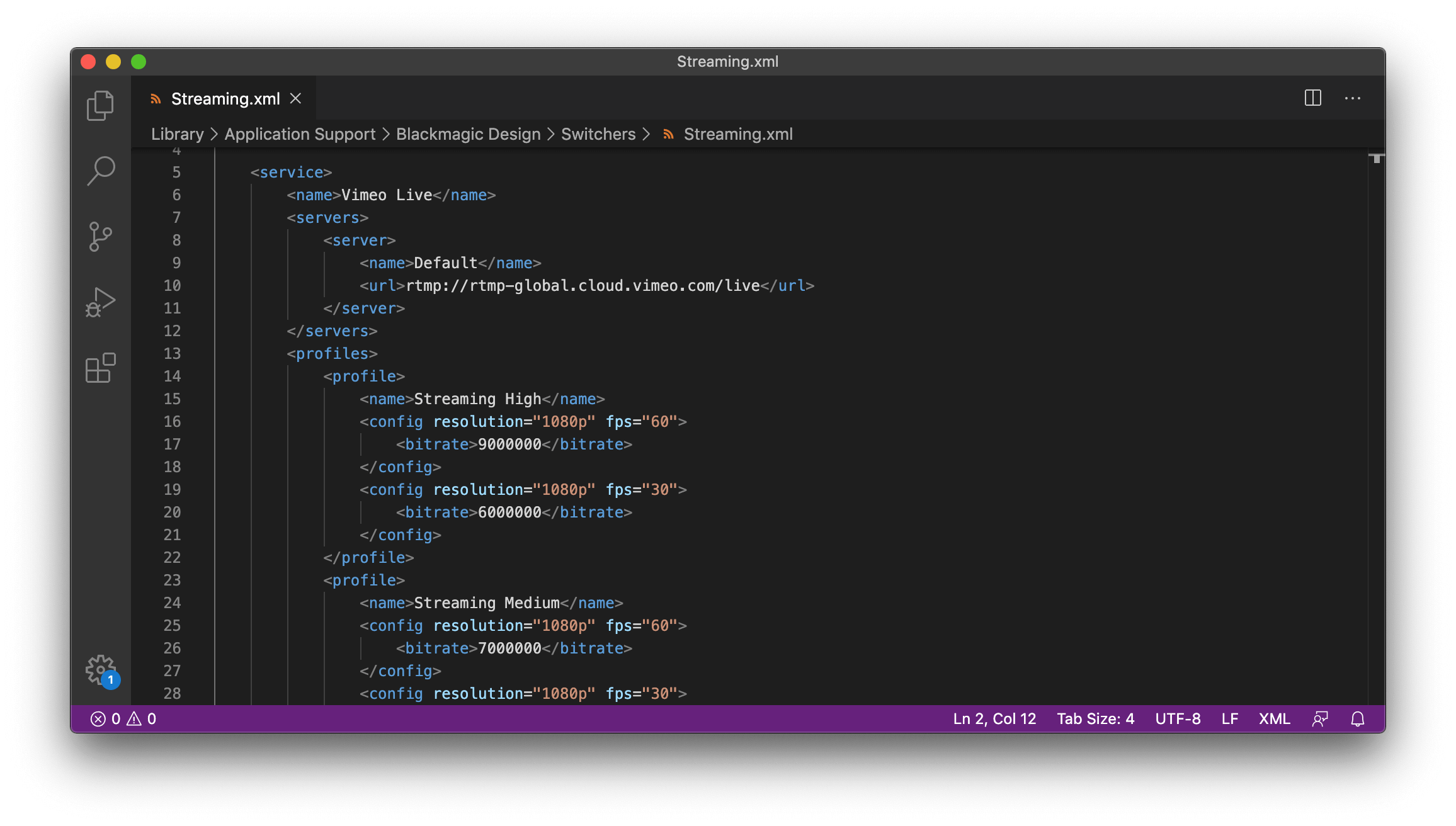
<url>). Source: Here to Record (Streaming.xml example).<service>
<name>Custom RTMP</name>
<servers>
<server>
<name>Default</name>
<url>rtmp://stream.yourdomain.tld/live</url>
</server>
</servers>
</service>The Stream Key is usually entered in ATEM Software Control in the Key field (not inside the URL).
2.3 Select the service in ATEM Software Control and go ON AIR
- Open ATEM Software Control ? Output (Live Streaming) palette.
- In Platform, select your custom service (e.g. “Custom RTMP”).
- Enter your Stream Key in the Key field.
- Select a quality/bitrate profile (Low/Medium/High) based on your upload.
- Press ON AIR (on the ATEM panel or in the UI) and verify on your provider/player.
3) Streaming Encoder / Web Presenter: custom RTMP from the Utility
With Blackmagic Streaming Encoder (or Web Presenter), you can configure streaming using Blackmagic Streaming Utility / Web Presenter Setup (Mac/Windows), connecting the device via USB or Ethernet.

3.1 Quick steps
- Install and open Blackmagic Streaming Utility / Web Presenter Setup.
- Connect the device via USB (local) or Ethernet (remote on LAN).
- Go to the Live Stream tab.
- Set Protocol to RTMP (if available).
- Select Platform = Custom / Custom URL (wording may vary by version).
- Enter:
- Server/URL = your RTMP URL
- Key = your Stream Key
- Select quality and press ON AIR.
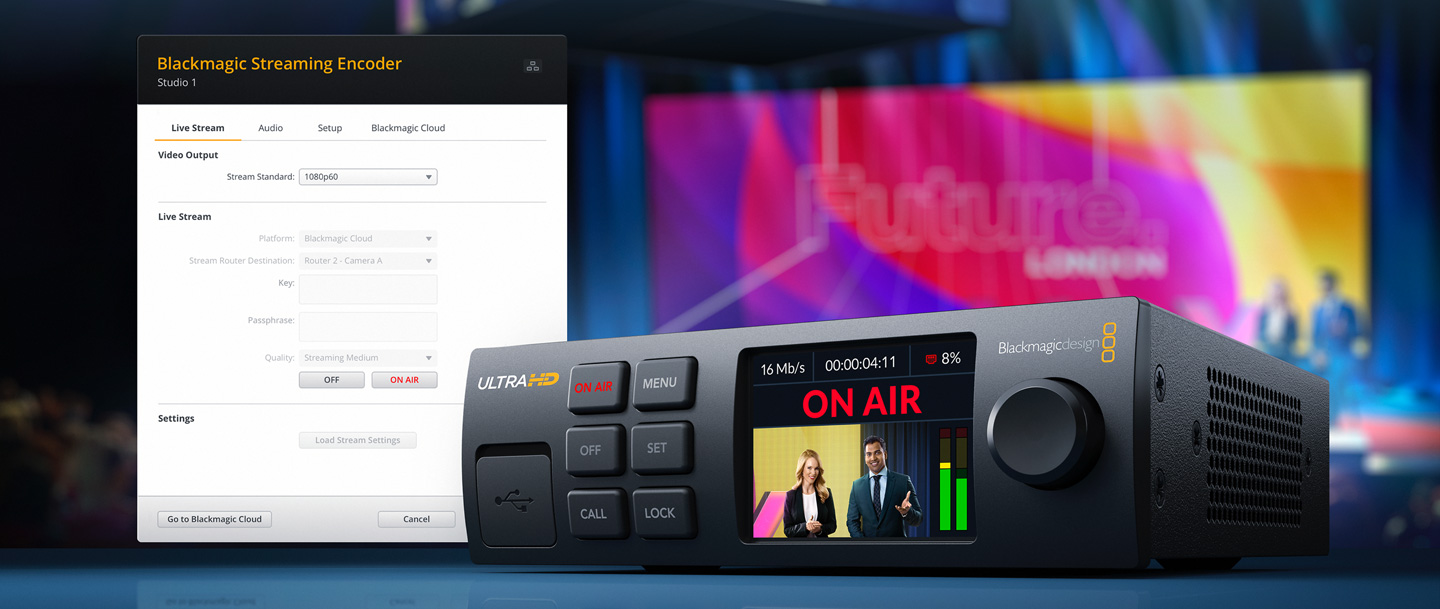
If your provider requires RTMPS, confirm your firmware/utility supports it. If in doubt, ask for an RTMP endpoint on port 443/80 or another supported alternative.
4) Recommended settings (video/audio)
For best RTMP compatibility, this is a solid starting point:
| Setting | Recommendation | Notes |
|---|---|---|
| Video codec | H.264 | Maximum RTMP compatibility. |
| Rate control | CBR (constant bitrate) | More stable for RTMP/CDN ingest. |
| Keyframe / GOP | 2 seconds | Commonly required/recommended by services. |
| Audio | AAC 128–192 kbps (48 kHz) | 160 kbps is a good balance. |
| Resolution / FPS | 720p30 or 1080p30 | Based on your available upload. |
Keep total bitrate (video+audio) within 60–70% of your real measured upload to avoid saturation.
5) Troubleshooting
Can’t connect / instantly goes OFF
- Confirm RTMP URL and Stream Key are correct (no extra spaces).
- Verify the URL path/app (e.g.
/live,/app) as provided. - Network/firewall: RTMP often uses TCP 1935. Some corporate networks block it.
- If your provider requires RTMPS or other ports, use the correct endpoint.
Choppy stream / buffering
- Lower bitrate or switch to 720p.
- Prefer Ethernet and stop competing uploads (backups/cloud sync).
- Make sure the selected quality profile (Low/Medium/High) matches your bandwidth.
Custom platform doesn’t appear in ATEM
- Did you save
Streaming.xmlin the correct folder and with the same name? - Did you restart ATEM Software Control after editing?
- On Windows you may need admin privileges to edit the file.
6) FAQ
Can I add multiple servers (primary/backup)?
Yes: in Streaming.xml you can define multiple servers for the same service, or create two separate services, depending on your provider and workflow.
Where do I enter the Stream Key on ATEM?
In the Output (Live Streaming) palette, in the Key field (see Figure 1). The server URL and the key are usually separate.
Helpful references: ATEM Mini – Getting Started • Blackmagic Streaming Processors • Custom Streaming Destination (ATEM Mini Pro)