


How to get your Facebook Stream Key and Server URL to go live on a Business Page
This guide shows you how to retrieve the Stream Key and Server URL from Facebook Live Producer so you can broadcast from software like OBS Studio, Streamlabs, vMix, etc. to your Facebook Page (not a personal profile).
Your Stream Key is like a password. Anyone who has it can stream to your Page. Don’t share it publicly.
- Requirements
- Open Facebook Live Producer
- Select your Business Page
- Create a live (Go live / Scheduled event) and choose “Streaming software”
- Copy Stream Key and Server URL (Persistent/Reset)
- Enter the details in OBS (or any RTMPS/RTMP encoder)
- Preview, test, and click “Go Live”
- Recommended settings (compatibility)
- Troubleshooting
- FAQ
1) Requirements
- A Facebook account with a Page role (Admin/Editor/Creator) on the Business Page.
- A desktop/laptop browser (Chrome/Edge recommended).
- Streaming software (e.g., OBS Studio).
- Stable upload bandwidth (Ethernet preferred).
- Server URL: the RTMPS/RTMP ingest address (e.g.,
rtmps://.../rtmp/). - Stream Key: the unique key you paste into your encoder.
Server URL:   rtmp(s)://HOST[:PORT]/PATH
Stream Key:   FB-.... (long key)
2) Open Facebook Live Producer
- Open the live creation link: facebook.com/live/create.
- Log in with the account that manages the Page.
- Click Create Live Stream (or the equivalent button you see).
3) Select your Business Page
Facebook may default to posting on a profile. To stream on your Business Page, set the destination to Post to Page you manage.
- In the left panel, open the destination selector (“Choose where to post”).
- Select Post to Page you manage and choose your Page.
4) Create the live and choose “Streaming software”
4.1 Choose “Go live” now or create a scheduled “Live video event”
Depending on the UI, you may see two options: Go live and Create live video event. For a quick setup, choose Go live and then click Create New.
- On the Go live card, click Create New.
- (Optional) If you want to schedule, use Create live video event.
4.2 Set the video source to “Streaming software”
- Open the Stream Setup section (or similar).
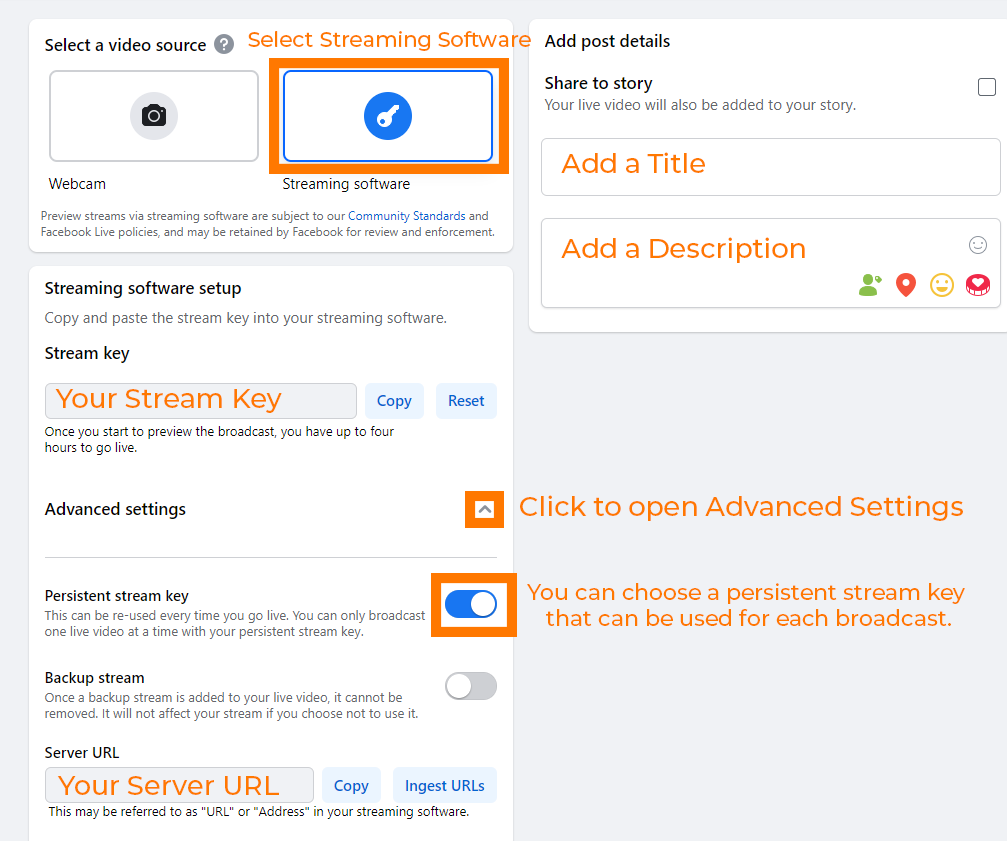
- Under “Select a video source”, choose Streaming software.
If you don’t see “Streaming software”, look for similar options like Use Stream Key or expand the streaming setup area.
5) Copy Stream Key and Server URL (Persistent/Reset)
After selecting “Streaming software”, Facebook shows the Stream Key box (and often the Server URL under “Advanced settings”).
- In the Stream Key box, click Copy.
- Expand Advanced settings to find the Server URL and other options.
- If needed, click Reset to generate a new Stream Key.
- If you want to avoid changing the key often, enable Persistent Stream Key (less secure, but convenient for fixed setups).
- Recommended if you have a “fixed” encoder (e.g., hardware) and want to avoid updating the key every time.
- Not recommended if multiple people can access the Page or if you’re concerned about accidental sharing.
6) Enter the details in OBS (or any RTMPS/RTMP encoder)
6.1 Fast method (use “Facebook Live” service in OBS)
- In OBS: Settings ? Stream.
- Service: Facebook Live.
- Paste your Stream Key (and use “Get stream key” only if you prefer linking the account).
6.2 Custom method (URL + Key fields)
If your encoder asks for Server URL and Stream Key separately, paste:
- Server URL into the URL/Server field.
- Stream Key into the Stream Key/Stream name field.
Paste values without leading/trailing spaces. Invisible spaces are a very common cause of connection errors.
7) Preview, test, and click “Go Live”
- In OBS, click Start Streaming.
- Back in Facebook Live Producer, wait for the preview to appear (it may take a few seconds).
- Fill in title/description and audience settings.
- When ready, click Go Live on Facebook.
- When finished, click End Live on Facebook, then stop streaming in OBS.
8) Recommended settings (compatibility)
Your best settings depend on your connection and content. As a safe baseline:
| Parameter | Recommendation | Notes |
|---|---|---|
| Video codec | H.264 | Most compatible. |
| FPS | 30 fps (or 25 fps in EU) | More stable on average connections. |
| Resolution | 1080p (or 720p if upload is limited) | 720p often helps when the network is unstable. |
| Video bitrate | ~3.5–6 Mbps for 1080p30 (lower for 720p) | Adjust to your real measured upload. |
| Keyframe interval / GOP | 2 seconds | Commonly recommended/required by platforms. |
| Audio | AAC 128–192 kbps @ 48 kHz | 160 kbps is a good balance. |
| Rate control | CBR when possible | Helps with ingest stability. |
Keep total bitrate (video + audio) within about 60–70% of your real measured upload to avoid saturation.
9) Troubleshooting
“Failed to connect” / can’t connect
- Copy/paste Stream Key and Server URL again (no spaces).
- If you clicked Reset, the old key no longer works — update your encoder.
- If you use “Custom”, make sure the URL is complete (including port if provided, e.g.
:443). - Check firewall/antivirus and try another network if possible.
No preview in Facebook
- Confirm you selected Streaming software and that OBS is actually streaming.
- Wait 10–30 seconds and refresh the page.
- If you use a Persistent Stream Key, ensure you didn’t paste an older key.
Choppy stream / buffering
- Lower bitrate and/or switch to 720p.
- Use Ethernet, and stop other uploads (cloud backups, calls, etc.).
- Use CBR and 2s keyframes.
10) FAQ
Does the Stream Key change every time?
It can change when you start a new live or if you use a non-persistent key. With Persistent Stream Key it usually stays the same, but it’s less secure.
Can I stream from two encoders at the same time with the same key?
Usually no: one live session typically accepts one ingest connection at a time. For redundancy, consider professional workflows or backup options (if available).
I only see the Stream Key — where is the Server URL?
It’s often under Advanced settings (or within an expanded “Streaming software setup” area). If you use OBS’s Facebook service, you may not need to paste the URL manually.
References: Proclaim Support — Stream URL & Stream Key • vMix Knowledge Base — Facebook Stream Key / Custom RTMP