


How to find your YouTube Stream Key and Stream URL to go live on a business channel
To stream on YouTube Live with software like OBS Studio, Streamlabs, vMix, etc., you typically need the Stream URL (RTMPS/RTMP) and your Stream Key from YouTube Studio’s Live Control Room. This guide is aimed at a business/brand channel (often a Brand Account).
Your Stream Key is like a password: anyone who has it can stream to your channel. Don’t share it or show it in public screenshots.
- Requirements
- Make sure you’re using the correct business channel
- Open YouTube Studio ? Go live (Live Control Room)
- Choose “Streaming software” (Right now / Later date)
- Copy Stream Key and Stream URL (Copy / Reset)
- Add the details in OBS (or any RTMPS/RTMP encoder)
- Start streaming and verify stream status
- Recommended settings (compatibility)
- Troubleshooting
- FAQ
1) Requirements
- A YouTube channel with live streaming enabled (in some cases, enabling can take time).
- Access with the Google account that manages the business channel (Brand Account).
- Desktop browser (Chrome/Edge recommended).
- Streaming software (e.g., OBS Studio).
- Stable upload bandwidth.
- Stream URL: the ingest endpoint (often
rtmps://a.rtmp.youtube.com/live2or similar). - Stream Key: a unique key you paste into your encoder.
Stream URL:   rtmp(s)://HOST[:PORT]/PATH
Stream Key:   xxxx-xxxx-xxxx-xxxx (long key)
2) Make sure you’re using the correct business channel
If you manage multiple channels (personal + business), check the profile icon (top-right) on YouTube/YouTube Studio and use Switch account to select the correct business channel before creating a live stream.
If you copy the Stream Key from the wrong channel, OBS will stream to the wrong channel. Always verify the channel name in YouTube Studio.
3) Open YouTube Studio ? Go live (Live Control Room)
- Open studio.youtube.com.
- In the top-right, click Create (the “+ / camera” icon).
- Select Go live to open the Live Control Room.
YouTube’s UI changes over time, but the workflow is the same: YouTube Studio ? Create ? Go live ? Stream.
4) Choose “Streaming software” (Right now / Later date)
4.1 Choose when you want to go live
In Live Control Room, YouTube may ask when you want to go live: Right now or Later date.
- Select Right now to go live immediately, or Later date to schedule.
- Click Start.
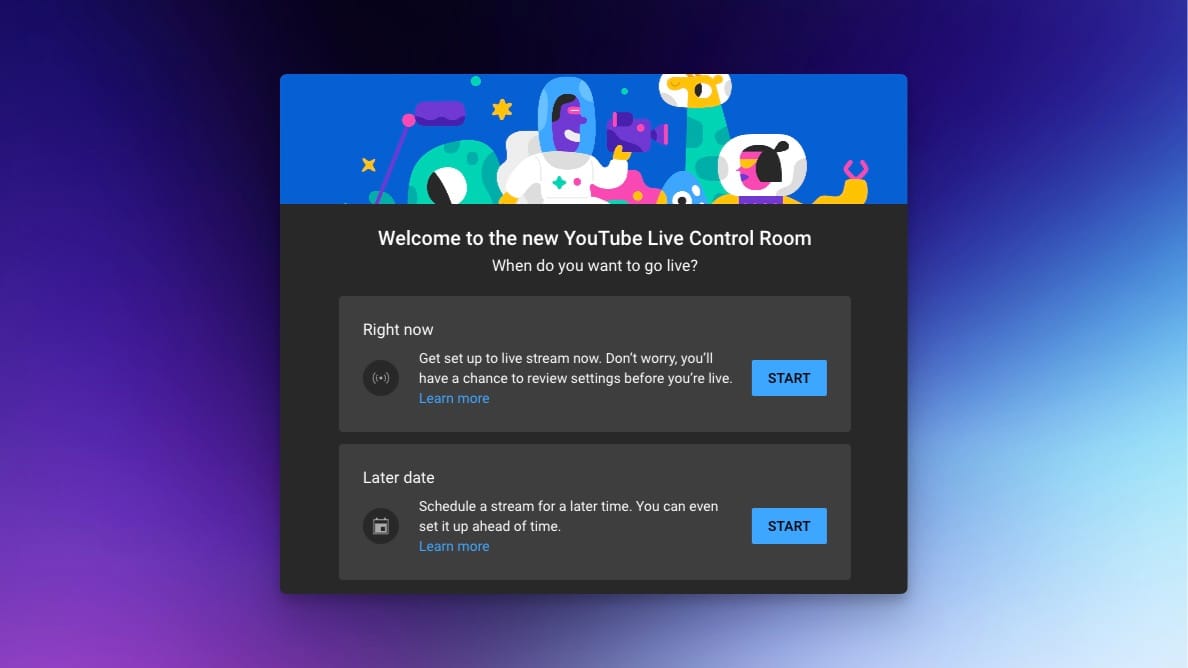
4.2 Pick the stream type: “Streaming software”
- When prompted to pick a stream type, choose Streaming software.
- Click Go.
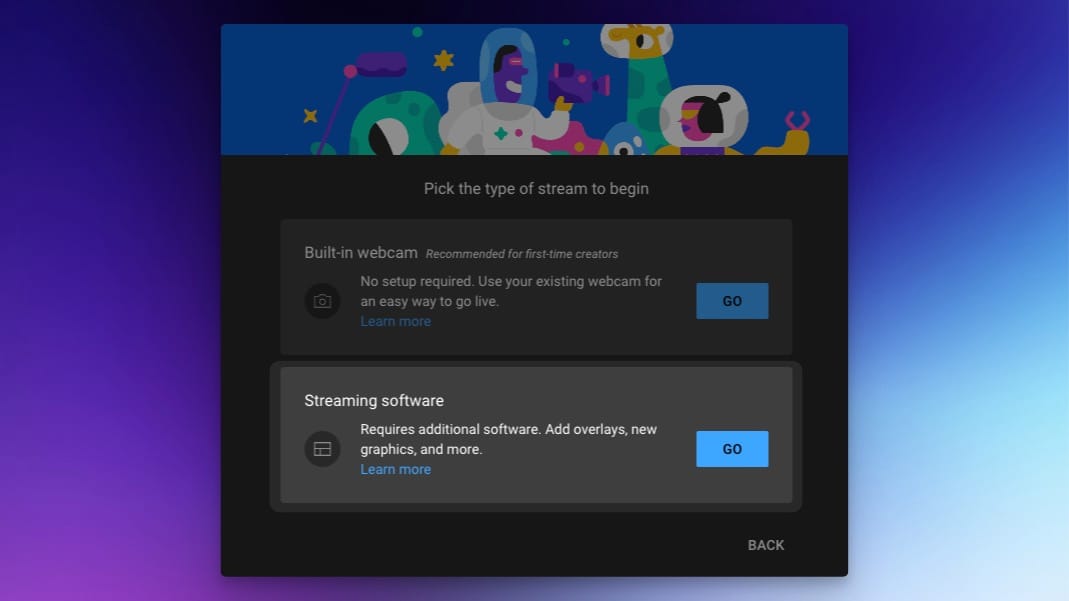
5) Copy Stream Key and Stream URL (Copy / Reset)
Once your stream is created, open the Stream settings (or Stream) section and find: Stream key + Stream URL (RTMPS/RTMP).
- Click COPY next to Stream key.
- Click COPY next to Stream URL.
- If you believe the key was exposed, click RESET to generate a new one.
- (Optional) Under “Select stream key”, you can create and select a custom stream key.
After a RESET, the old Stream Key stops working. Update OBS/your encoder immediately with the new key.
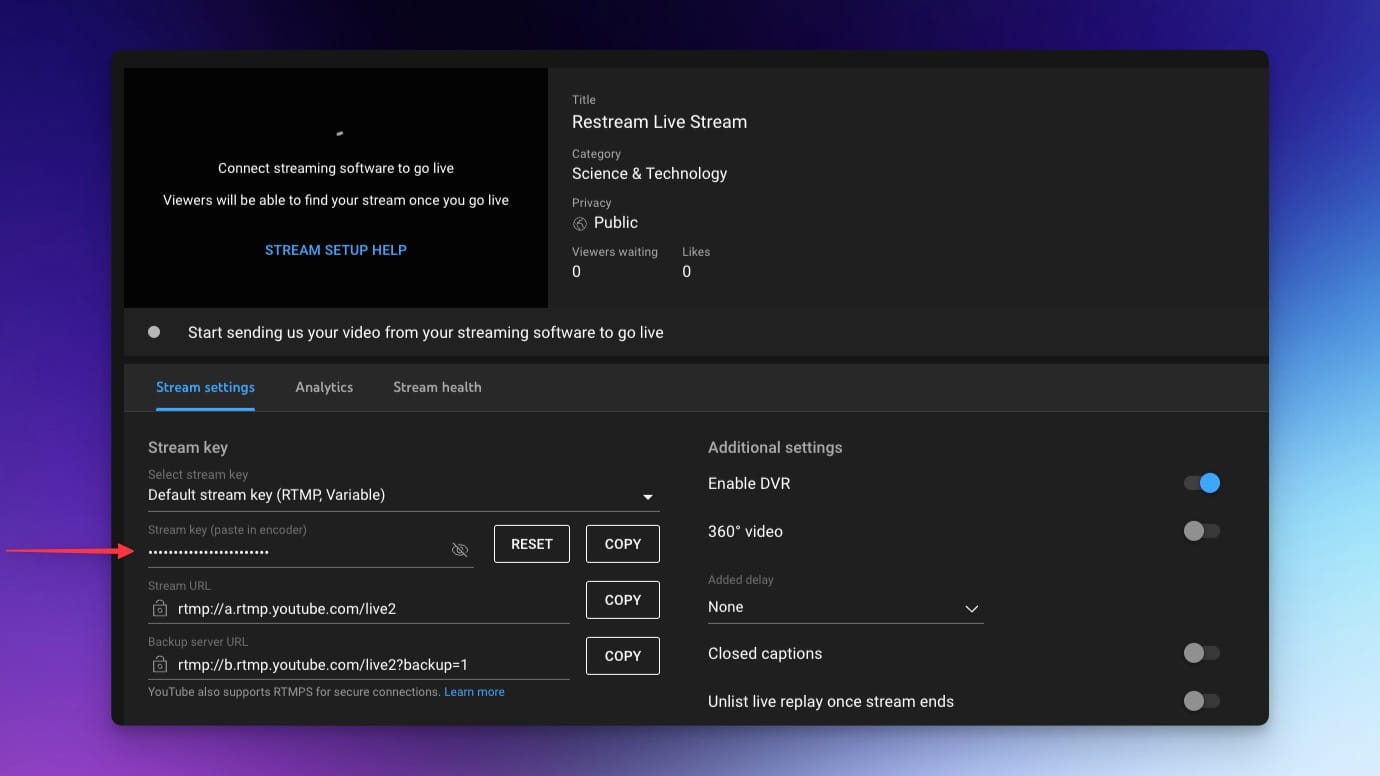
You can open the Manage tab in Live Control Room and click the event; Stream Key and URL appear in its settings.
6) Add the details in OBS (or any RTMPS/RTMP encoder)
6.1 Quick method: connect your account (if available)
- In OBS: Settings ? Stream ? Service: YouTube.
- Use Connect Account (if available) to sign in without manually pasting the key.
6.2 Manual method: paste Stream Key (and URL if required)
- In OBS: Settings ? Stream ? Service: YouTube.
- Paste the Stream Key into the key field.
- If your encoder asks for a server address too, paste the Stream URL into the URL/Server field.
Paste Stream Key and URL without leading/trailing spaces. Invisible spaces are a common source of connection errors.
7) Start streaming and verify stream status
- In OBS, click Start Streaming.
- Back in YouTube Studio, check the preview and Stream health.
- If Auto-start is enabled, YouTube may go live automatically once the encoder starts; otherwise click Go live in YouTube.
- When finished, stop streaming in OBS, then end the stream in YouTube (or rely on Auto-stop).
8) Recommended settings (compatibility)
Your best settings depend on your connection and content. As a safe, compatible baseline:
| Parameter | Recommendation | Notes |
|---|---|---|
| Video codec | H.264 | Most compatible for ingest. |
| FPS | 30 fps (or 25 fps) | Stable for most workflows. |
| Resolution | 1080p (or 720p if upload is limited) | 720p often helps when the network is unstable. |
| Video bitrate | ~4–6 Mbps for 1080p30 (lower for 720p) | Adjust to your real measured upload. |
| Keyframe interval / GOP | 2 seconds | Commonly recommended. |
| Audio | AAC 128–192 kbps @ 48 kHz | 160 kbps is a good balance. |
| Rate control | CBR when possible | Helps stability. |
Keep total bitrate (video + audio) within about 60–70% of your real measured upload (speed test).
9) Troubleshooting
Can’t connect / “failed to connect”
- Copy the Stream Key and Stream URL again (no spaces).
- If you clicked RESET, update your encoder with the new key.
- Verify you’re using the correct channel (business/brand account).
- Restart OBS and reload Live Control Room.
No preview
- Wait 10–30 seconds (ingest delay can happen).
- Confirm OBS is actually streaming (timer/bitrate indicators).
- Check “Stream health” for network/bitrate warnings.
Choppy stream / buffering
- Lower bitrate or switch to 720p.
- Avoid concurrent uploads (cloud backups, calls, etc.).
- Use CBR and 2s keyframes.
10) FAQ
Does the Stream Key change every time?
Usually no: you can reuse a key or create a custom stream key. It changes when you regenerate it (Reset) or switch keys.
Can I use RTMPS?
Yes: YouTube supports secure ingest over RTMPS. If your encoder supports it, it’s preferred.
Where do I find Stream Key and Stream URL for a scheduled stream?
Open Live Control Room ? Manage, select the event, then open Stream settings.
References: YouTube Help — Live streaming with an encoder • YouTube Help — Manage live stream settings • YouTube Help — Use RTMPS • Restream Learn — Find your YouTube stream key • StreamYard Help — Connect an existing YouTube Live Stream