


How to get your LinkedIn Live Stream Key and RTMP/RTMPS URL for a Company Page
To go live on LinkedIn Live using an encoder (e.g., OBS Studio, vMix, Wirecast, Streamlabs), LinkedIn provides two essential values inside Live Studio / Custom stream: the Stream URL (RTMP or RTMPS) and the Stream Key. This guide (with images) walks you through finding those values and adding them to your streaming setup.
Your Stream Key is like a password: anyone who has it can stream on your Page. Don’t share it or display it in public screenshots.
- Requirements and needed details
- LinkedIn Live access for Pages (what you need)
- Open “Custom stream / Live Studio”
- Create a live: “Go live now” or “Schedule for later”
- Generate and copy Stream URL + Stream Key
- Enter the values in OBS (or any encoder)
- Preview and go live on LinkedIn
- Recommended encoder settings
- Troubleshooting
- FAQ
1) Requirements and needed details
To stream to LinkedIn Live with an encoder, you’ll need:
- Stream URL (RTMP/RTMPS): the ingest endpoint (e.g.,
rtmps://…) - Stream Key: the unique key you paste into your streaming software
- An encoder/tool: for example OBS Studio
- Stable upload bandwidth (Ethernet recommended)
Stream URL (Server):  rtmp(s)://HOST[:PORT]/PATH
Stream Key:           xxxxxxxx-xxxx-xxxx-xxxx-xxxxxxxxxxxx
In OBS you typically paste Stream URL into Server and Stream Key into Stream Key.
2) LinkedIn Live access for Pages (what you need)
LinkedIn Live is available for eligible profiles and Pages. In general, to stream as a Company Page you should:
- Be a Page admin (or have the required permissions).
- Have the account/Page in good standing (policy compliance).
- Have a baseline audience (often described as ~150 followers/connections depending on context).
- Use a streaming tool (LinkedIn Live typically uses encoders/partners for RTMP ingest).
During live creation, ensure you select your Company Page in the “Create a post” area / “Where to post” selector.
3) Open “Custom stream / Live Studio”
- Open LinkedIn on desktop (browser).
- Open the “Custom stream” page (often called Live Studio):
linkedin.com/video/golive/now/ - If you manage multiple entities, confirm you’re logged in with the account that administers the Page.

4) Create a live: “Go live now” or “Schedule for later”
4.1 Choose “Go live now” or schedule a stream
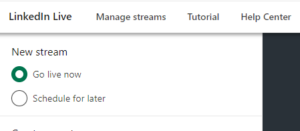
- Under New stream, choose:
- Go live now to start immediately
- Schedule for later to schedule the live
- In Create a post, select your Company Page as the destination.
- Enter the title (and description/hashtags if available).
4.2 (Optional) Create a LinkedIn Live event
Many businesses stream inside an Event to promote it and collect registrations. When creating the event, select an Event format of LinkedIn Live (if available in your UI).
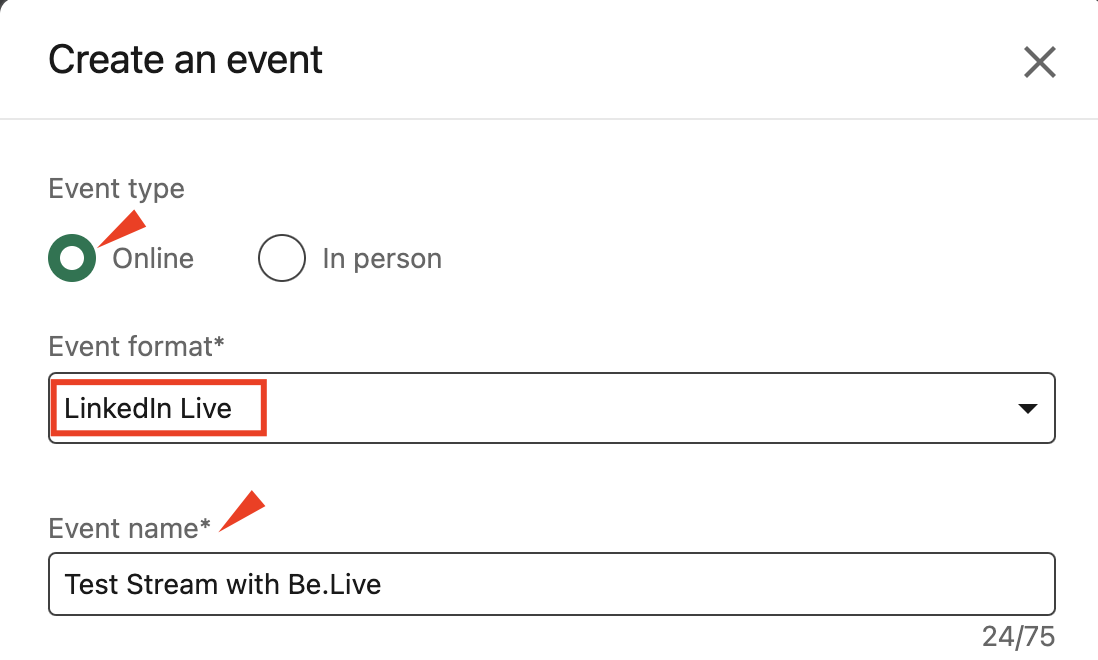
For scheduled streams, the controls to prepare the stream and generate credentials (URL/Key) may only become available close to the event time (often ~1 hour before; sometimes up to 2 hours for verified Pages, per LinkedIn guidance).
5) Generate and copy Stream URL + Stream Key (RTMP/RTMPS)
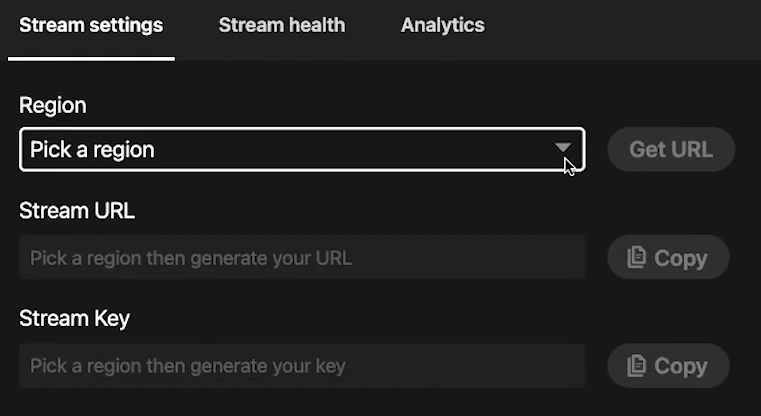
In the Stream settings tab you’ll usually see a Region selector. Choose the closest region and click Get URL to generate your credentials.
- Open Stream settings.
- Choose a Region (pick the closest one).
- Click Get URL.
- Use Copy to copy the Stream URL and Stream Key.
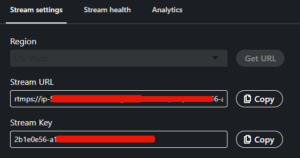
LinkedIn supports RTMP/RTMPS. If the Stream URL starts with
rtmps://, keep it as-is — it’s the encrypted option (recommended).6) Enter the values in OBS (or any encoder)
Example steps in OBS Studio (labels may vary slightly by version):
- Open OBS ? Settings ? Stream.
- Set Service to Custom… (or “Custom Streaming Server”).
- Paste LinkedIn’s Stream URL into the Server field.
- Paste the Stream Key into the Stream Key field.
- Save with Apply / OK.
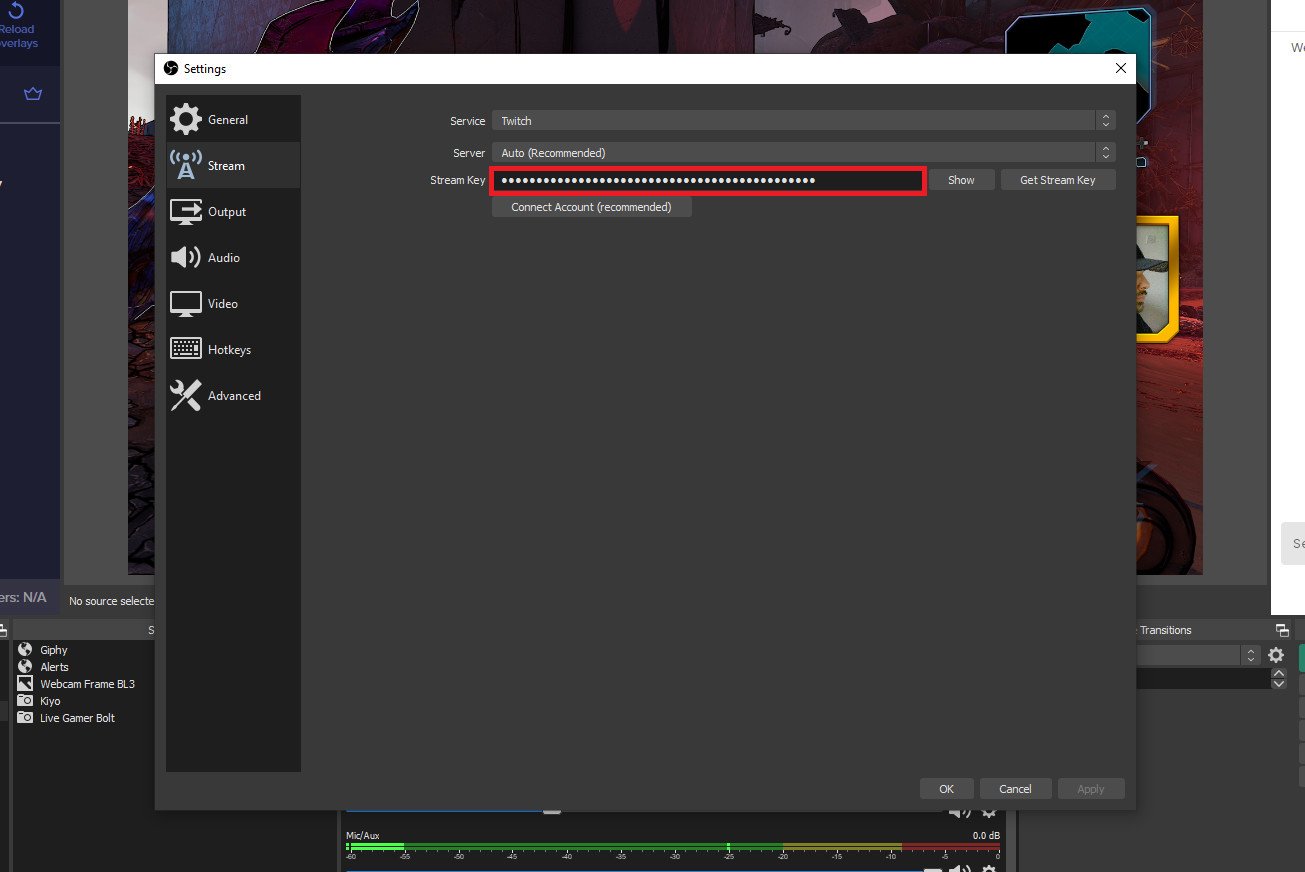
Copy/paste the URL and key without leading/trailing spaces — invisible spaces are a common cause of connection errors.
7) Preview and go live on LinkedIn
The typical workflow is:
- In OBS (or your encoder), click Start Streaming.
- Back in LinkedIn Live Studio, you should see a preview once the connection is correct.
- When ready, click Go live in LinkedIn to make the stream public.
- To end: stop streaming in your encoder and then end the live in LinkedIn.
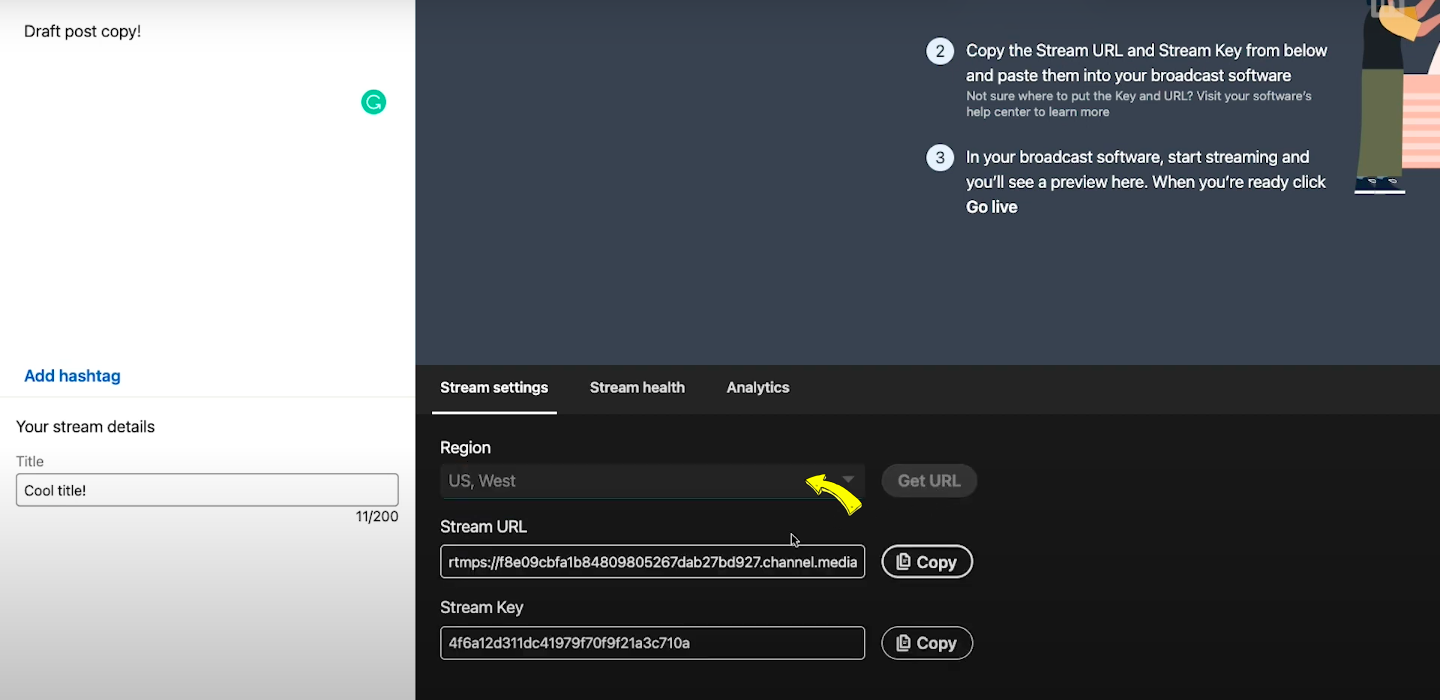
Until you click Go live in LinkedIn, your audience won’t see the stream — you’re only previewing/testing. Preview time may be limited (longer for verified Pages).
8) Recommended encoder settings
Below is a safe baseline aligned with typical LinkedIn Live encoder requirements. If your network is unstable, prefer 720p and a lower bitrate.
| Parameter | Recommended | Notes |
|---|---|---|
| Aspect ratio | 16:9 | Standard for LinkedIn Live. |
| Resolution | 720p recommended (1080p max) | 720p is more stable on moderate upload. |
| FPS | 30 fps | Common and compatible. |
| Keyframe interval / GOP | Every 2 seconds (60 frames at 30 fps) | Important for ingest. |
| Video bitrate | ~3.5 Mbps recommended (6 Mbps max) | Adjust to your measured upload. |
| Audio | AAC 128 kbps @ 48 kHz | Good quality/stability balance. |
| Codec | H.264 (video) + AAC (audio) | Standard for RTMP ingest. |
| Protocol | RTMP / RTMPS | Use whatever your Stream URL specifies. |
Keep total bitrate (video+audio) within about 60–70% of your real measured upload (speed test) to avoid saturation.
9) Troubleshooting
Connection error / no preview
- Copy the Stream URL and Stream Key again (no spaces, no extra characters).
- Confirm you selected a Region and clicked Get URL.
- Try a nearby region if the closest is overloaded.
- Make sure you’re streaming as the Company Page (not your profile) if that’s your goal.
- Restart the encoder and reload Live Studio.
Choppy stream / poor stream health
- Lower the bitrate or switch to 720p.
- Use Ethernet and stop other uploads (cloud backups, transfers, etc.).
- Confirm 2-second keyframes and preferably CBR.
Audience can’t see the live
- Start streaming in the encoder, then click Go live in LinkedIn.
- If you’re only in preview, the audience won’t see anything yet.
10) FAQ
Can I change the Stream Key?
Yes. When you regenerate credentials (new session / new “Get URL”), the key can change. Update OBS/your encoder right away if it does.
Can I go live directly from the LinkedIn app?
For professional LinkedIn Live, streaming is typically done via an encoder/partner tool and delivered over RTMP/RTMPS.
Should I stream on a Page or inside an Event?
It depends on your goal. Events help with registrations and promotion; Pages are simpler for follower updates. Many companies use Events for webinars and Page lives for quick announcements.
References: LinkedIn Help — Go live instantly using a custom stream (RTMP) • LinkedIn Help — Custom stream (RTMP) FAQ • LinkedIn Help — Live video encoder settings • Sprout Social — LinkedIn Live guide • Castr — LinkedIn stream key and URL