


How to find your Stream Key and RTMP/RTMPS URL to go live on X (Twitter) with a business account
To stream live on X (formerly Twitter) using an encoder (e.g., OBS Studio, vMix, Wirecast, Streamlabs), you typically create an RTMP Source inside Media Studio Producer and then copy two values: the RTMP/RTMPS URL and the Stream Key.
Your Stream Key is like a password: anyone who has it can stream on your account. Don’t share it or show it in public screenshots.
X doesn’t have Pages like Facebook — the equivalent is a brand/business account. This guide applies to any account that has access to Media Studio Producer.
1) Requirements and what you need
- Access to X Media Studio Producer (not all accounts will see it).
- Depending on current policy, it may require a verified account with X Premium/Premium+.
- An encoder (e.g., OBS Studio) and stable upload bandwidth.
RTMP/RTMPS URL (Server):  rtmp(s)://HOST[:PORT]/PATH
Stream Key:               LONG_KEY_GENERATED_BY_X
In OBS: Server = RTMP/RTMPS URL • Stream Key = Stream Key.
2) Open X Media Studio / Producer
- Log in to X with your business/brand account.
- Open Media Studio:
- Typical URL: studio.x.com
- In some experiences it may still appear as “studio.twitter.com” or as part of “Premium”.
- Open the Producer panel.
This is an eligibility/permissions issue. In that case you can use a third-party platform (e.g., Restream/Streamlabs) or contact X support/account management (if available).
3) Create an RTMP Source
- In Producer, go to Sources.
- Click Create source.
- Set:
- Source type: RTMP
- Region: choose the closest region (better stability/latency)
- Source name: an easy label (e.g., “OBS - Brand”)
- Save with Create.
4) Copy RTMP/RTMPS URL and Stream Key
- Open the source you created (click it in Sources).
- Copy:
- RTMP URL (or RTMPS URL if you prefer encrypted ingest)
- RTMP(s) stream key
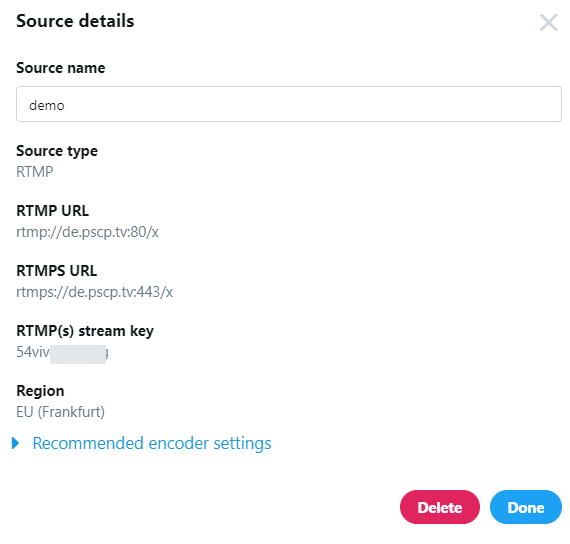
If available, RTMPS (URL starting with
rtmps://) encrypts the stream on the way to X. Use RTMPS if your encoder supports it.5) Create a Broadcast (now or scheduled)
On X, you generally create a Broadcast that uses the Source you created.
5.1 Open “Broadcasts” and click “Create broadcast”
- Go to the Broadcasts tab.
- Click Create broadcast.
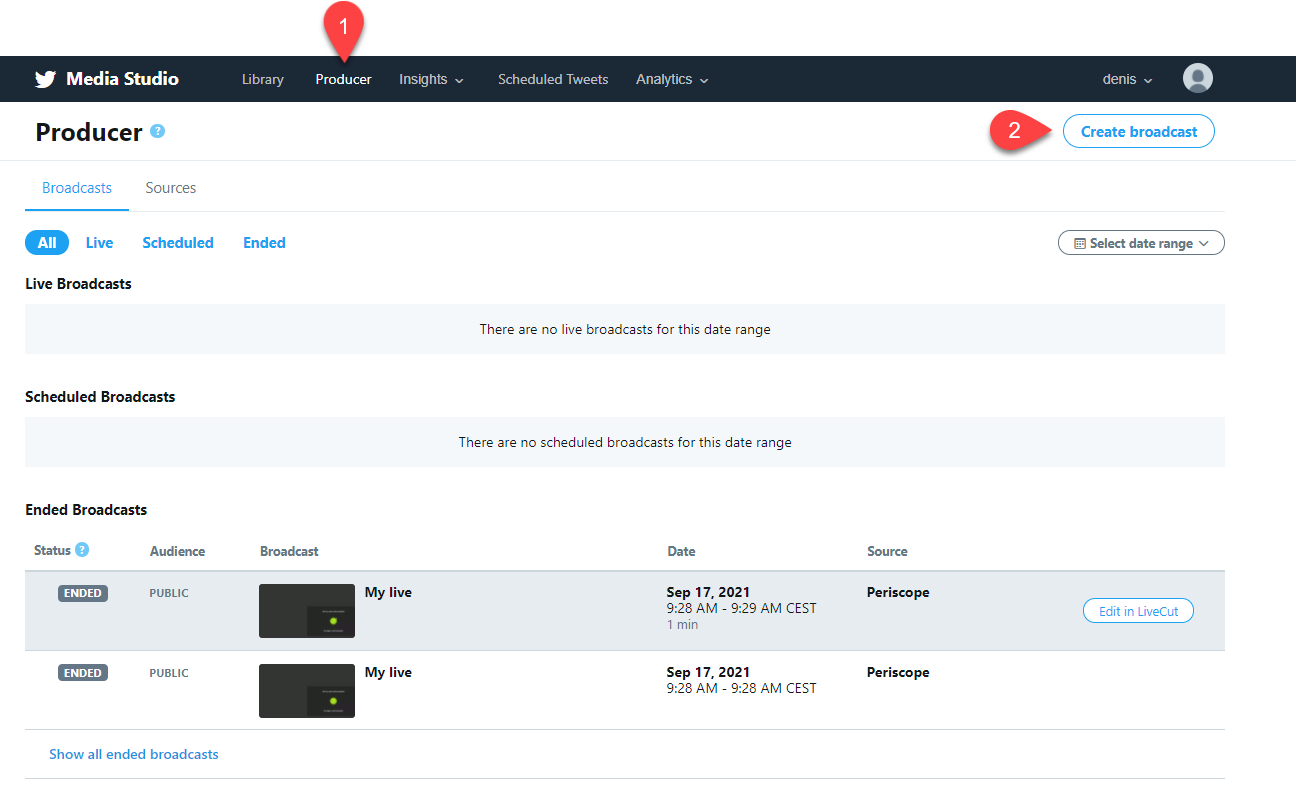
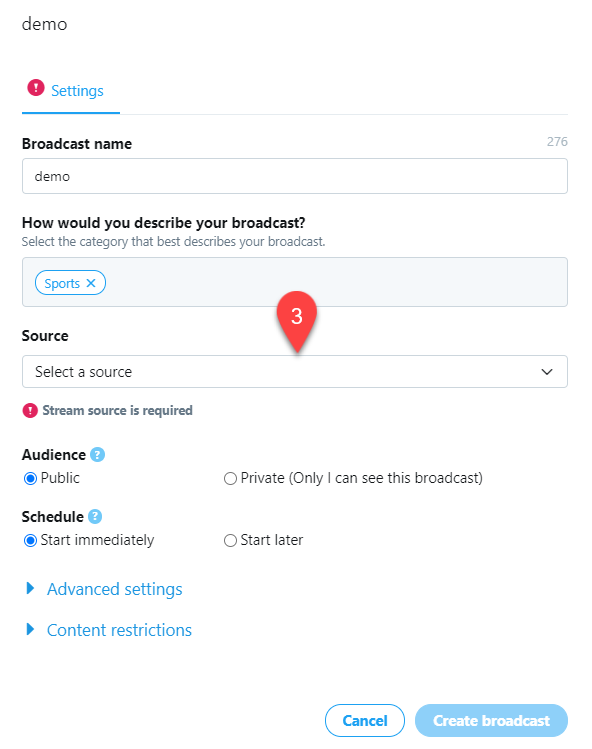
5.2 Fill broadcast details and select the Source
- Enter a Broadcast name and category/description (if required).
- In the Source field, select your RTMP Source.
- Set Audience (Public/Private) and Schedule (Start immediately / Start later).
- Confirm with Create broadcast.
6) Enter the values in OBS (Custom RTMP/RTMPS)
- Open OBS ? Settings ? Stream.
- Set Service to Custom… (or “Custom Streaming Server”).
- Paste the RTMP URL (or RTMPS URL) into the Server field.
- Paste the Stream Key into the Stream Key field.
- Save with Apply / OK.

Copy/paste without leading/trailing spaces — they’re a common cause of “failed to connect”.
7) Go live and end the broadcast
- In OBS, click Start Streaming.
- Return to X Media Studio Producer and open your broadcast: you should see preview/stream health once the connection is active.
- Start the live (a “Go live/Start” button may be required in the UI).
- To end: stop streaming in OBS, then end/close the broadcast in X.
Some workflows also publish a post/tweet to announce the live from the Producer panel. If prompted, do it before or right after starting.
8) Recommended settings (compatibility)
Safe baseline RTMP settings. Adjust based on your bandwidth and stability.
| Parameter | Recommendation | Notes |
|---|---|---|
| Video codec | H.264 | Most compatible. |
| FPS | 30 fps | Stable for most workflows. |
| Keyframe interval / GOP | 2 seconds | Commonly required/recommended. |
| Audio | AAC 128–192 kbps @ 48 kHz | 160 kbps is a good balance. |
| Rate control | CBR when possible | Helps ingest stability. |
Keep total bitrate (video+audio) within ~60–70% of your real measured upload to avoid saturation and dropped frames.
9) Troubleshooting
Connection error / no preview
- Copy the RTMP/RTMPS URL and Stream Key again (no spaces, no extra characters).
- Confirm you selected the correct region (closest to you).
- Try RTMPS if available (or switch back to RTMP) depending on encoder compatibility.
- Verify your broadcast is using the correct source.
Choppy stream / low quality
- Lower bitrate or resolution.
- Use Ethernet and stop other uploads (cloud backups, calls, etc.).
- Confirm 2-second keyframes and CBR.
You don’t see Media Studio/Producer
- This is an access/eligibility issue. Check your account subscription/verification status and permissions.
10) FAQ
Does the Stream Key change?
The key can change if you create a new source or regenerate credentials. If you change the source, always update your encoder.
Does RTMP use username/password authentication?
Typically the “password” is the Stream Key. Traditional RTMP user/pass auth is not commonly used in X’s workflow.
How many sources can I create?
X may enforce limits on the number of sources (for example, some docs mention 100). If “Create source” doesn’t work, you may have hit a limit.
References: X Help — Media Studio Producer (RTMP) • Restream Learn — Find X stream key • Socialive — Stream to X via RTMP • LiveU Studio Support — Custom RTMP to Twitter