


How to find your RTMP URL and Stream Key on Rumble (and Rumble Studio) to go live with OBS
To stream live on Rumble using an encoder (e.g., OBS Studio, Streamlabs Desktop, vMix), you need two values: the RTMP URL (server) and the Stream Key. This guide includes two methods: Method A (classic on Rumble.com) and Method B (Rumble Studio with Direct RTMP).
Rumble doesn’t use Pages like Facebook — the equivalent is a channel (account/brand).
Your Stream Key is like a password: anyone who has it can stream to your channel. Don’t share it or show it in public screenshots. If you suspect exposure, regenerate/reset the key.
1) Requirements & what you need
- A Rumble account/channel with Live access (availability may depend on account status and current policies).
- An encoder (e.g., OBS Studio).
- Stable upload bandwidth (Ethernet recommended).
RTMP URL (Server):  rtmp(s)://HOST[:PORT]/PATH
Stream Key:         LONG_KEY_GENERATED_BY_RUMBLE
In OBS: Server = RTMP URL • Stream Key = Stream Key.
2) Method A — Rumble.com (Go Live ? Get Streamer Configuration)
This is the “classic” flow directly on Rumble.com: you create a live stream and then copy URL/Key from Get Streamer Configuration. The UI may change over time, but the steps are typically similar.
2.1 Open “Go Live”
- Sign in on rumble.com.
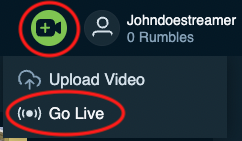
- Click the camera icon (top-right) and select Go Live.
2.2 Create the live stream
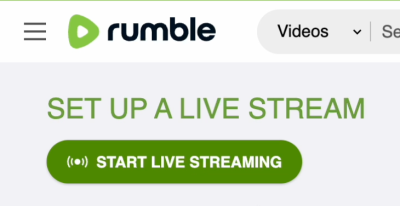
- On “Set up a live stream”, click Start Live Streaming.
- Fill in title/description, thumbnail, and any required fields.
- Proceed with Next and then Submit to create the live.

2.3 Copy RTMP URL and Stream Key
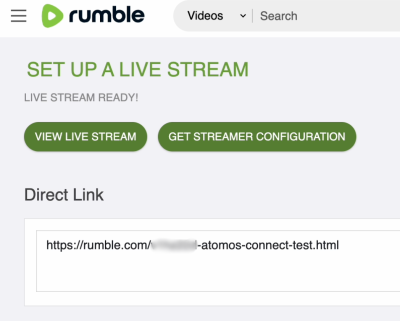
- On “Live Stream Ready”, you should see buttons like View Live Stream and Get Streamer Configuration.
- Click Get Streamer Configuration.
- Copy the Stream URL (RTMP URL) and the Stream Key.

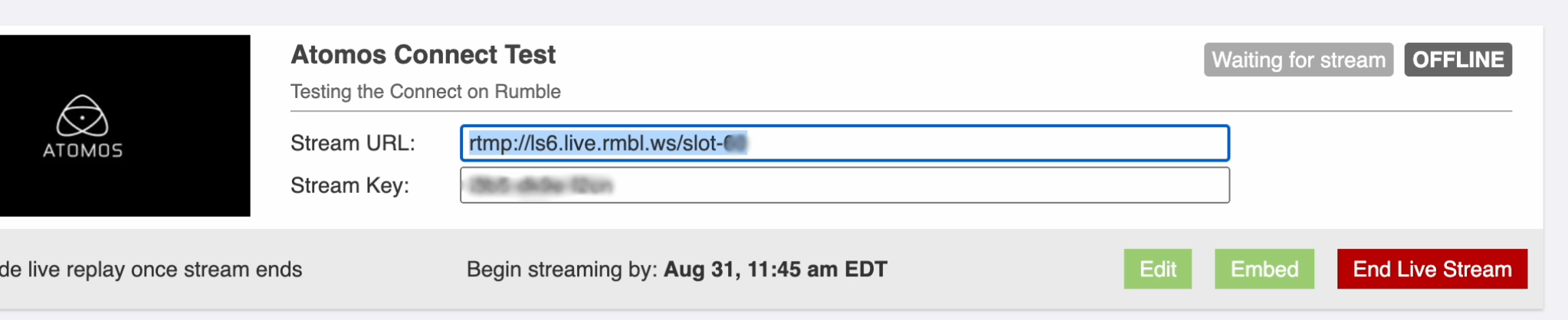
In many “classic” Rumble flows the key can be tied to that specific live. If you create a new live, always re-check URL/Key.
3) Method B — Rumble Studio (Direct RTMP ? Encoder Details)
If you use Rumble Studio (studio.rumble.com), you can create a Direct RTMP room and then copy the values from Encoder Details. This flow is designed for high-quality RTMP ingest (“pass-through”).
- Go to studio.rumble.com and sign in.
- Create/open a Direct RTMP room (if available on your account).
- Open Encoder Details and copy Stream URL + Stream Key.
- Direct RTMP often uses a more static key (“set & forget”), with an option to reset/regenerate.
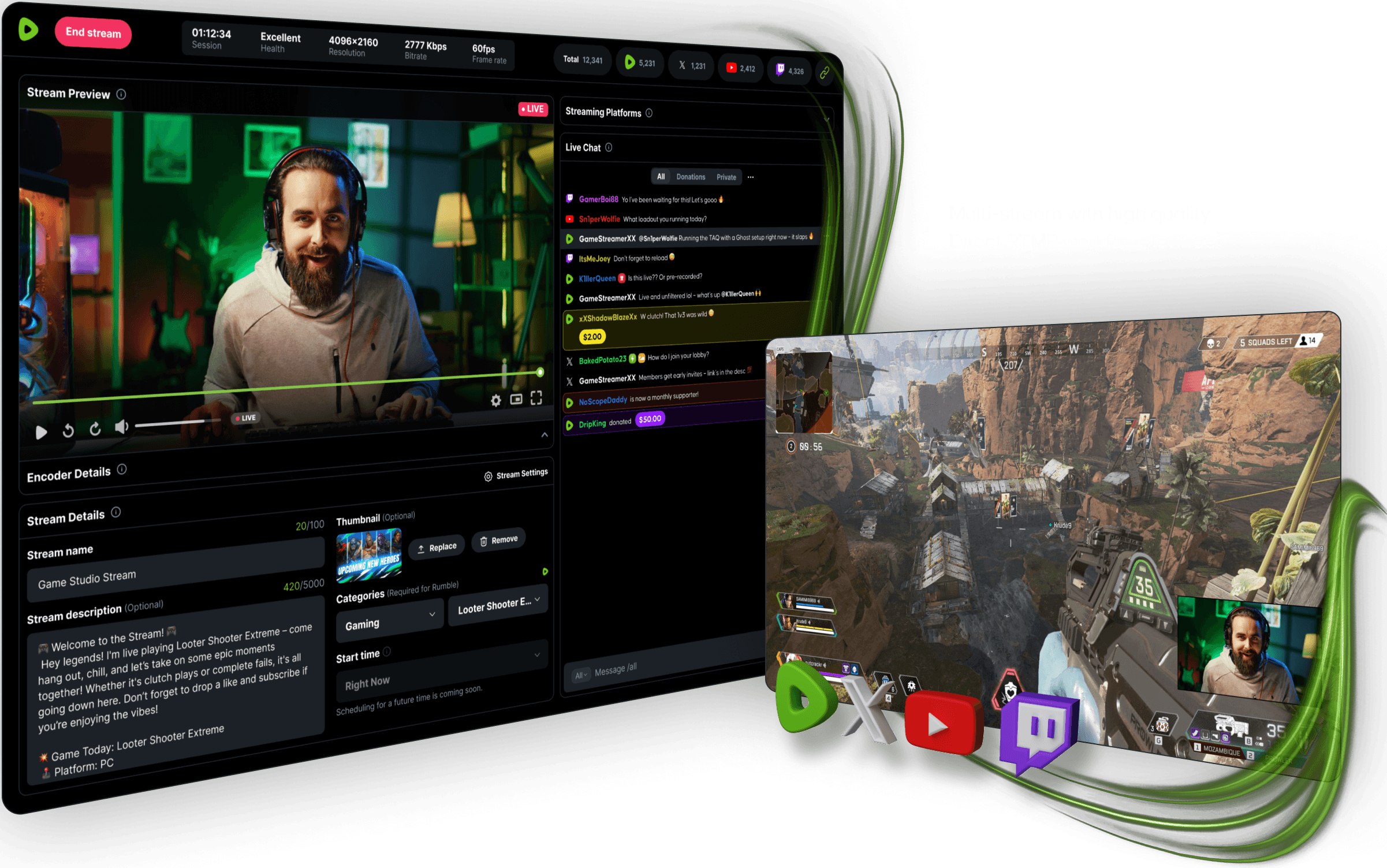
Some features may depend on rollout or account profile. In that case, use Method A on rumble.com.
4) Set up OBS (Custom RTMP)
- Open OBS ? Settings ? Stream.
- Set Service to Custom… (or “Custom Streaming Server”).
- Paste your RTMP URL / Stream URL into Server.
- Paste your Stream Key into Stream Key.
- Save with Apply / OK.

A single extra space (start/end) in the URL or key can cause connection errors.
5) Recommended settings for Rumble
Rumble publishes recommended ranges for resolution/bitrate as well as encoder parameters (H.264, CBR, 2s keyframes). Below is a practical summary for compatibility.
| Preset | Resolution | Frame rate | Video bitrate (range) |
|---|---|---|---|
| 1080p @60 | 1920×1080 | 60/50 fps | 4,000–6,000 Kbps |
| 1080p @30 | 1920×1080 | 30/25 fps | 2,500–4,500 Kbps |
| 720p @60 | 1280×720 | 60/50 fps | 3,000–4,000 Kbps |
| 720p @30 | 1280×720 | 30/25 fps | 2,000–3,000 Kbps |
- Protocol: RTMP
- Video codec: H.264
- Rate control: CBR
- Keyframe interval: 2 seconds
- Audio: AAC (44.1 kHz / 128 kbps stereo)
Source: “Recommended Settings For Live Streaming on Rumble” (see link below).
6) Troubleshooting
Connection error / won’t connect
- Copy the RTMP URL and Stream Key again (no spaces).
- If you created a new live, confirm the key didn’t change (especially in Method A).
- Check firewall/VPN/proxy — they can block RTMP.
Choppy stream / buffering
- Lower bitrate and/or switch to 720p.
- Use CBR and 2s keyframes.
- Stop other uploads (cloud backups, calls, etc.).
Can’t find “Go Live” or Studio options
- This may be an account/eligibility limitation or a UI change. Make sure you’re on the right account and try from desktop.
7) FAQ
Can I use RTMPS?
If you’re given an rtmps:// URL and your encoder supports it, RTMPS encrypts the stream in transit. When in doubt, use what Rumble provides and test before your live.
What happens if I reset the Stream Key?
You must paste the new key into your encoder (OBS). The old key will stop working.
References: Rumble Support — Recommended Settings For Live Streaming • Rumble Support — Direct RTMP (Rumble Studio) • Atomos Support — RTMP Setup (incl. Rumble)